Modify Item Expiry Reminder
If an item doesn’t already have a reminder, you can simply add one; there’s no need to repeat those steps here. This section mainly explains how to modify an existing reminder, such as changing the calculation method from “specified expiration date” to “production date + shelf life,” and similar adjustments.
Change Calculation Method
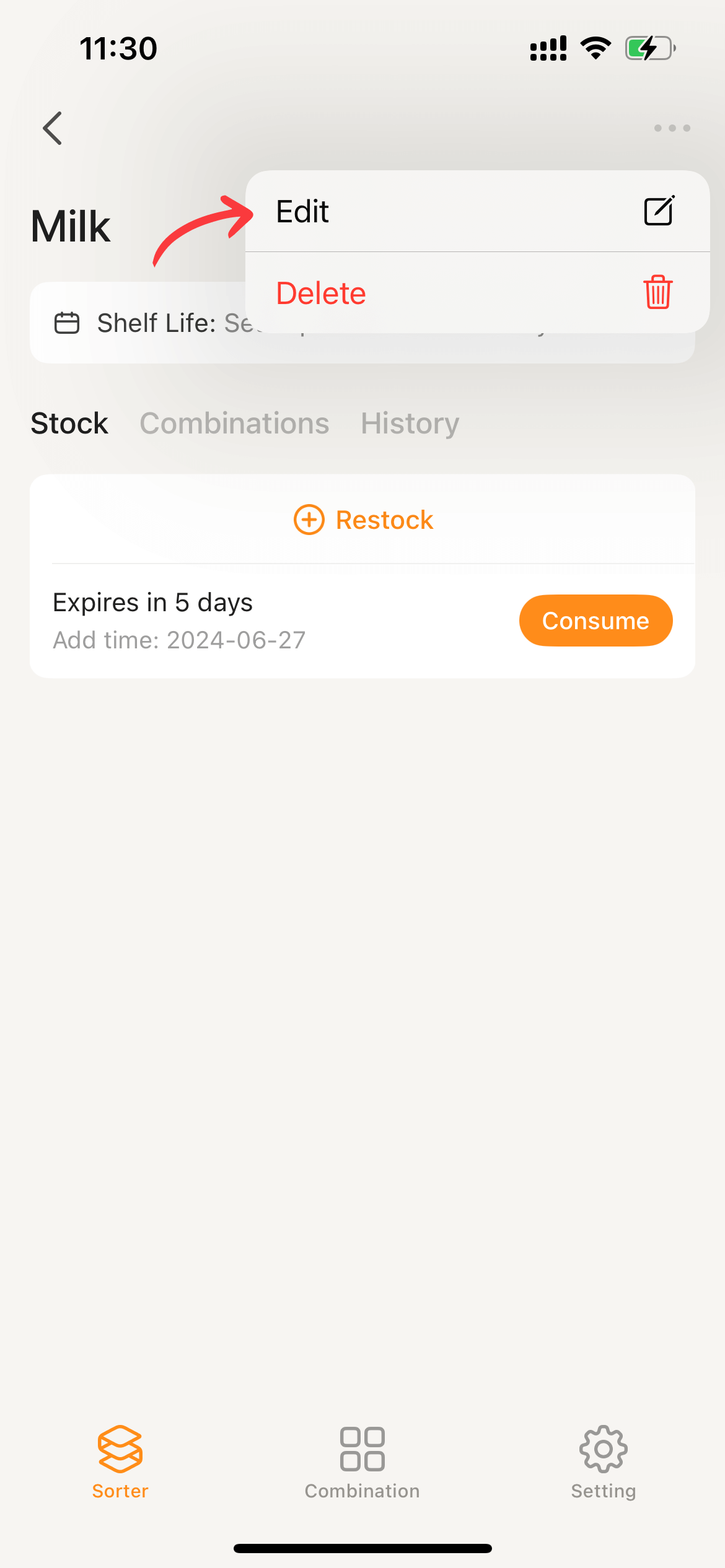
- Navigate to the item details, tap the
...in the top right corner, selectEditfrom the menu to access the item editing page.
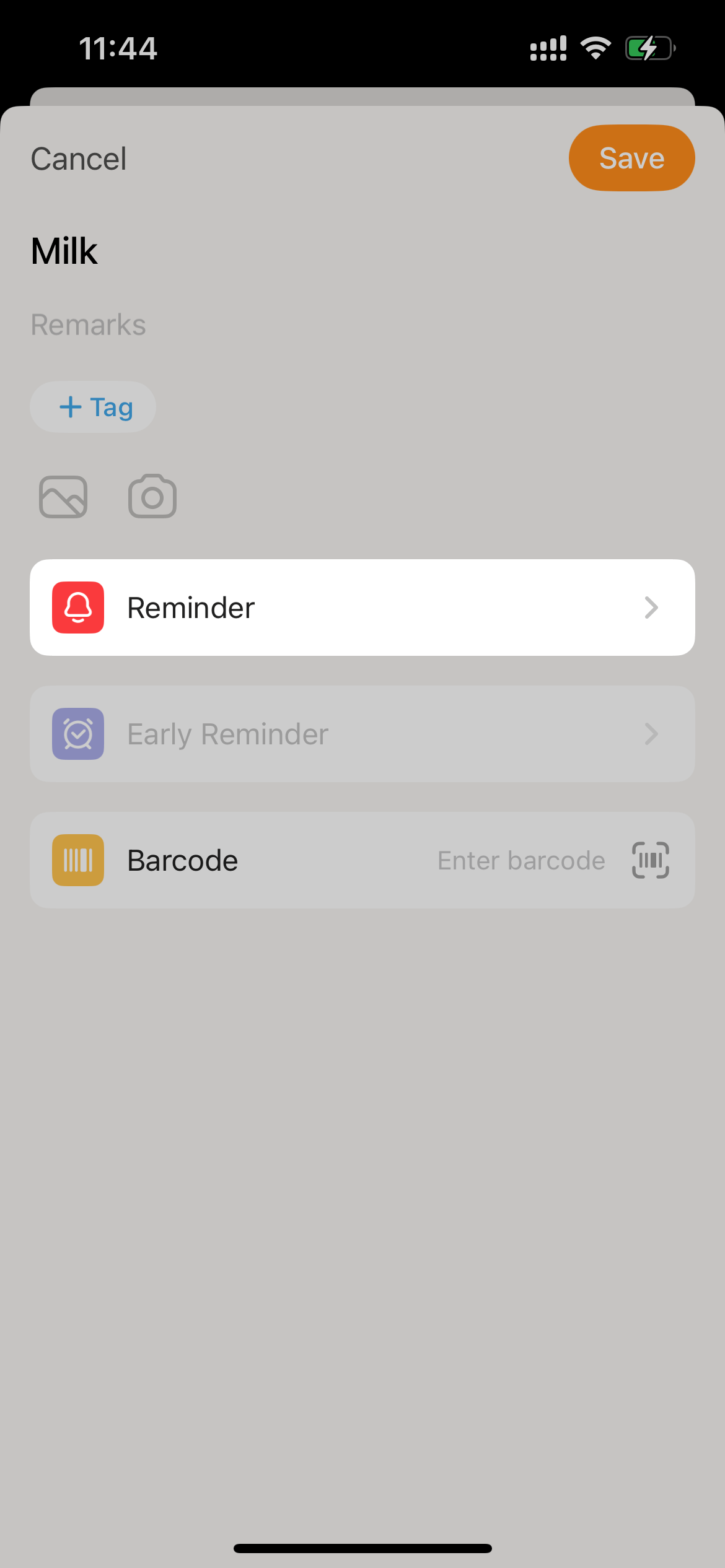
- Tap on the Reminder component to enter the reminder settings page.
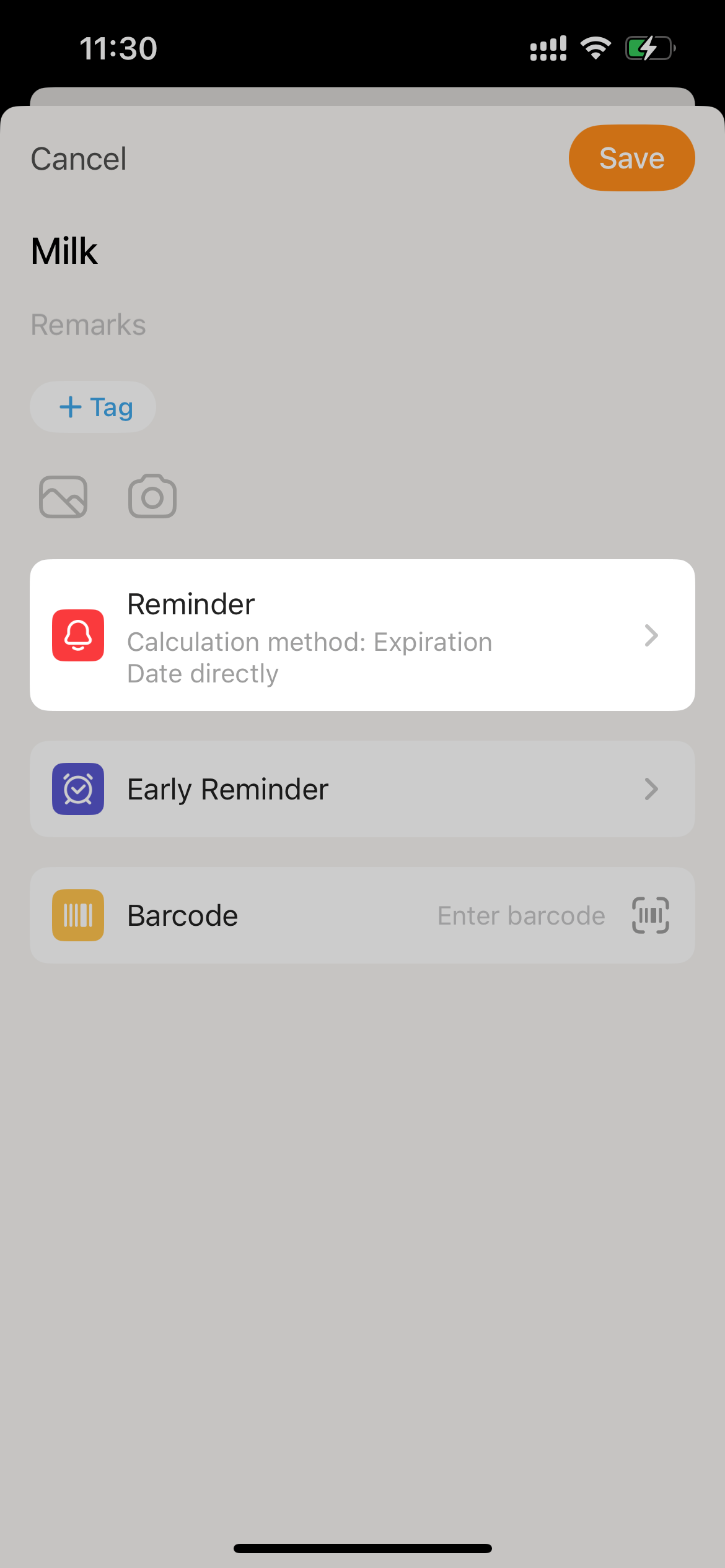
- Tap
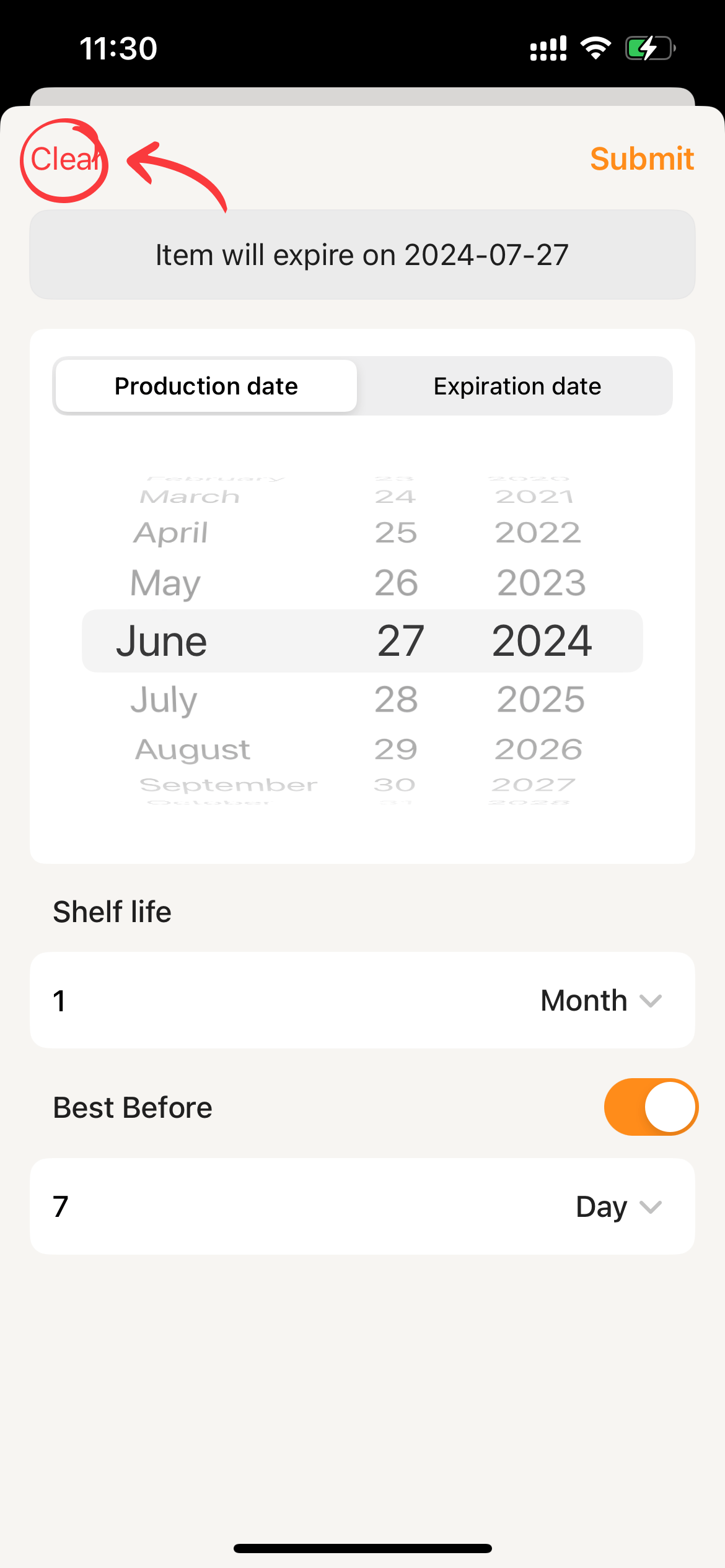
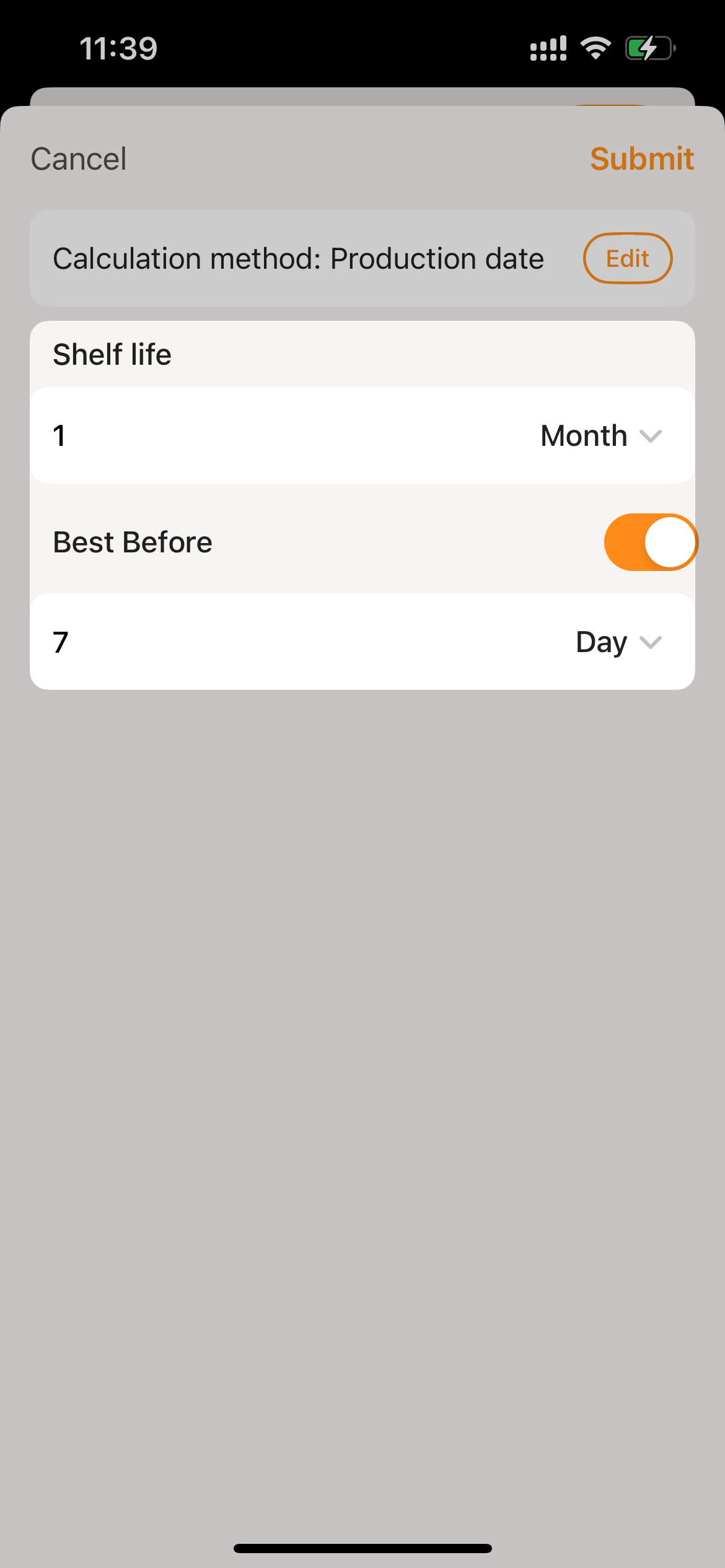
Editto access the reminder settings page, then adjust as needed for ‘Production Date’ ‘Shelf Life’ ‘Best Before’ and tapSubmit.
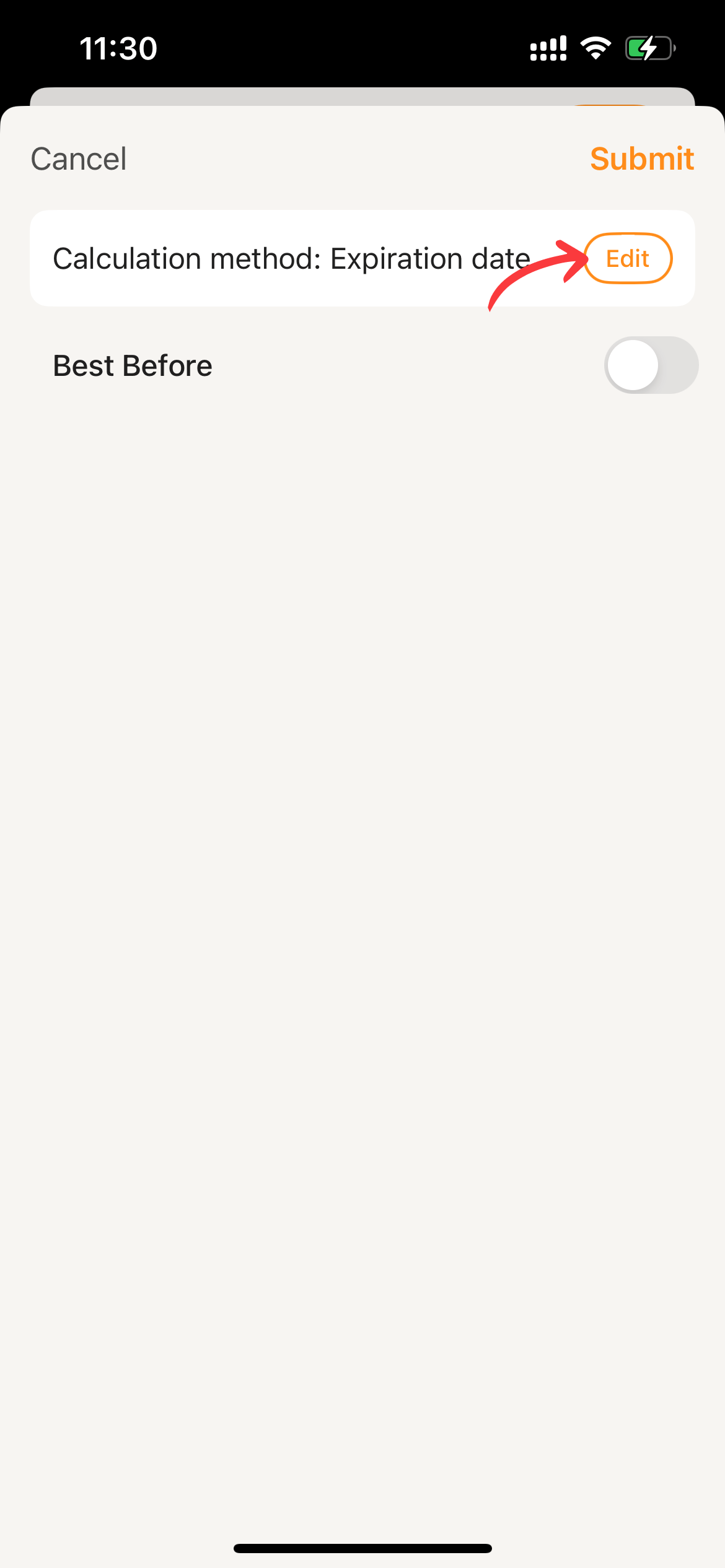
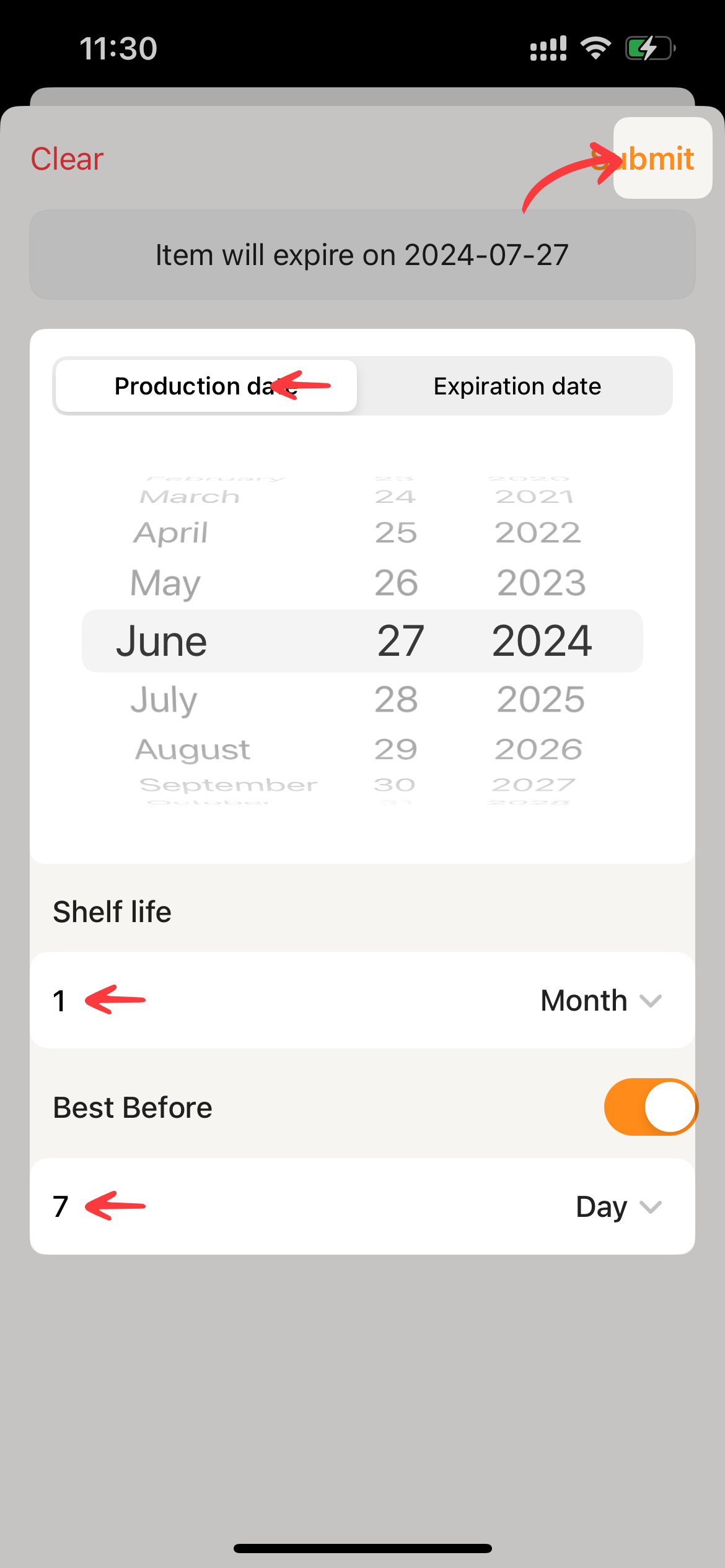
- The page will display previously set parameters synchronously. Tap
Submitto return to the item edit page.
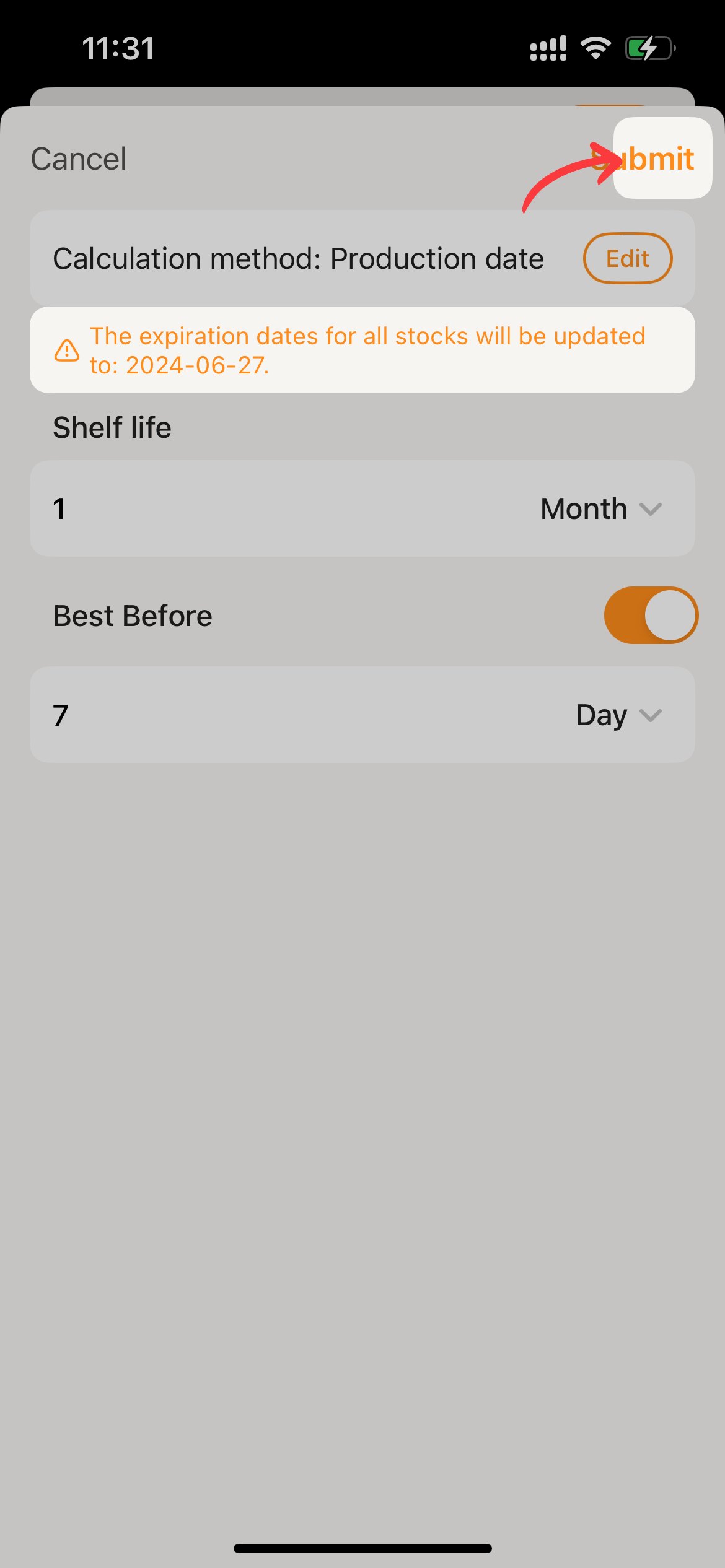
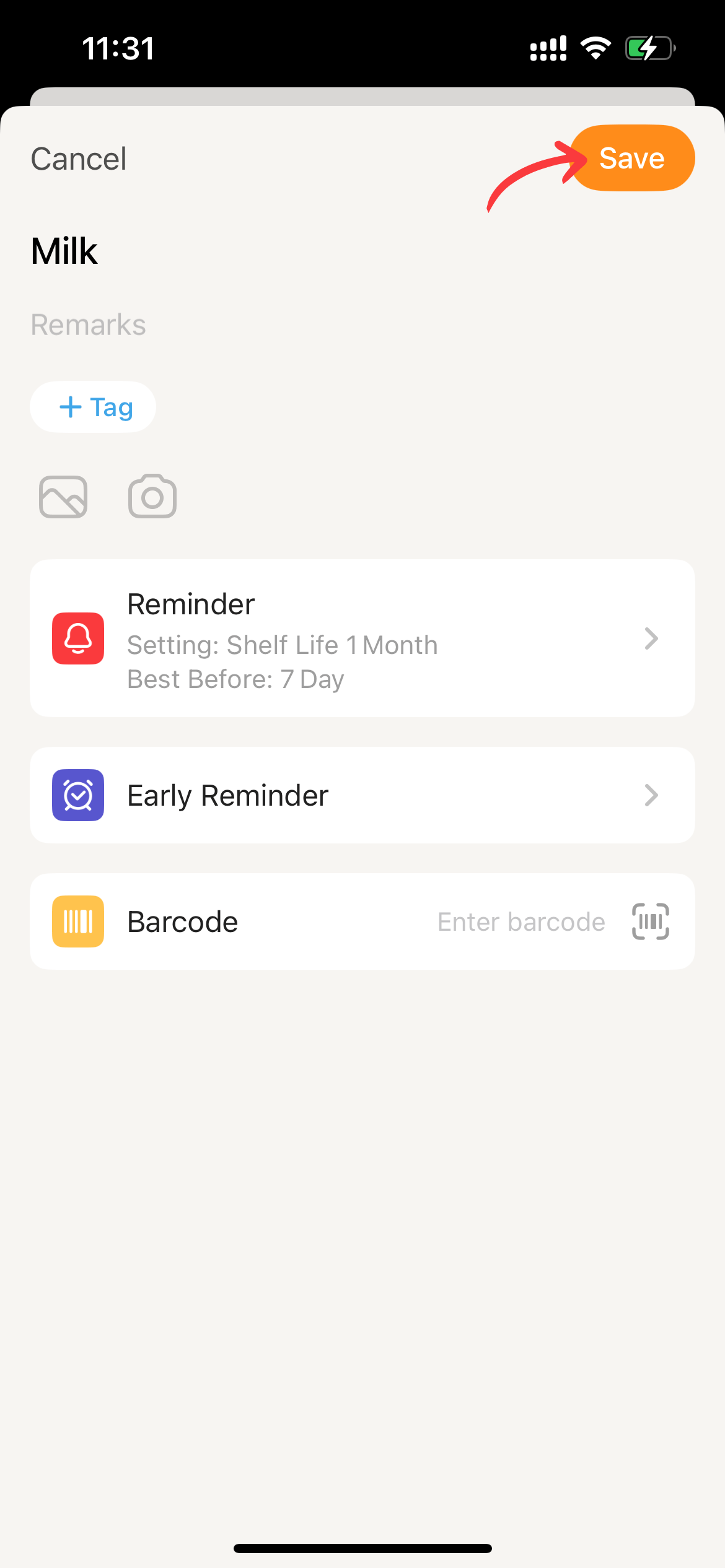
- Tap
Saveto update the item’s expiration information, and all stock will be updated accordingly.
Only change the shelf life or best-before period.
If you’re only modifying the shelf life or best-before period of an item, you can directly adjust it in the reminder settings page. After making the changes, all stock will be recalculated based on “the original production date of the stock + the newly set shelf life”. The same logic applies when modifying the best-before period.
Remove Item Reminder
- Tap Edit to open the reminder settings page.
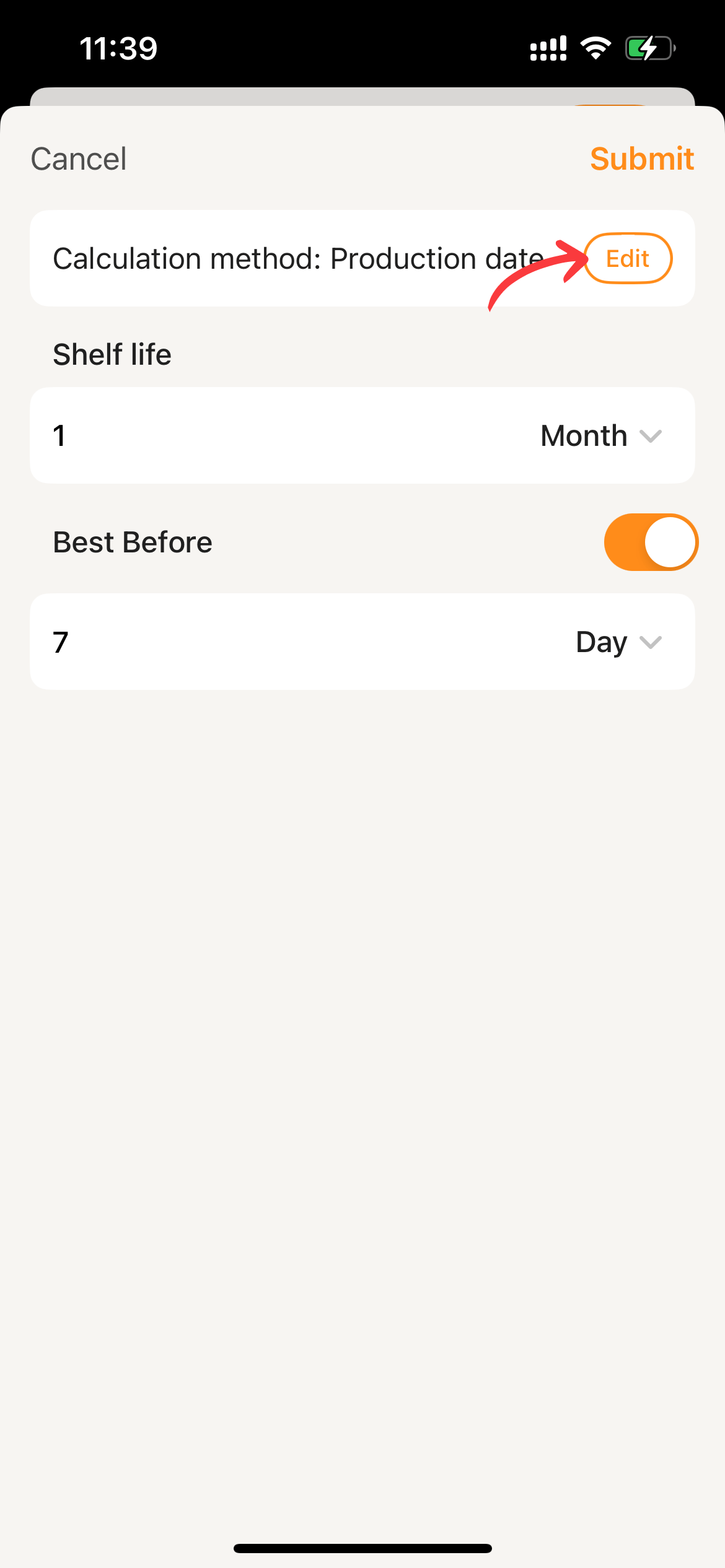
- Tap
Clear, The Sorter will automatically clear the reminder and return to the item’s edit page. TapSaveagain to update the data.