Customize Early Reminder
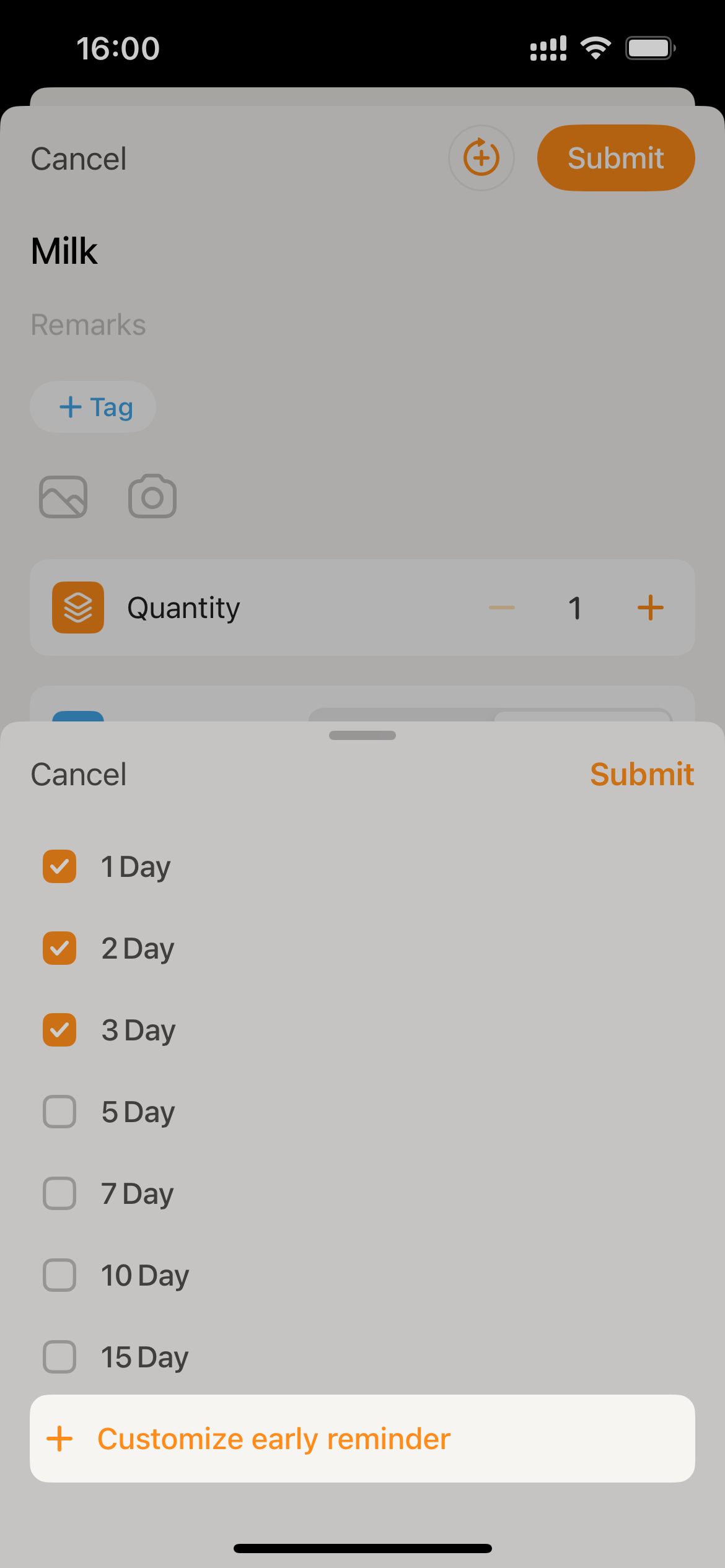
When setting the early reminder, add directly.
- When setting the Early Reminder, you can click the
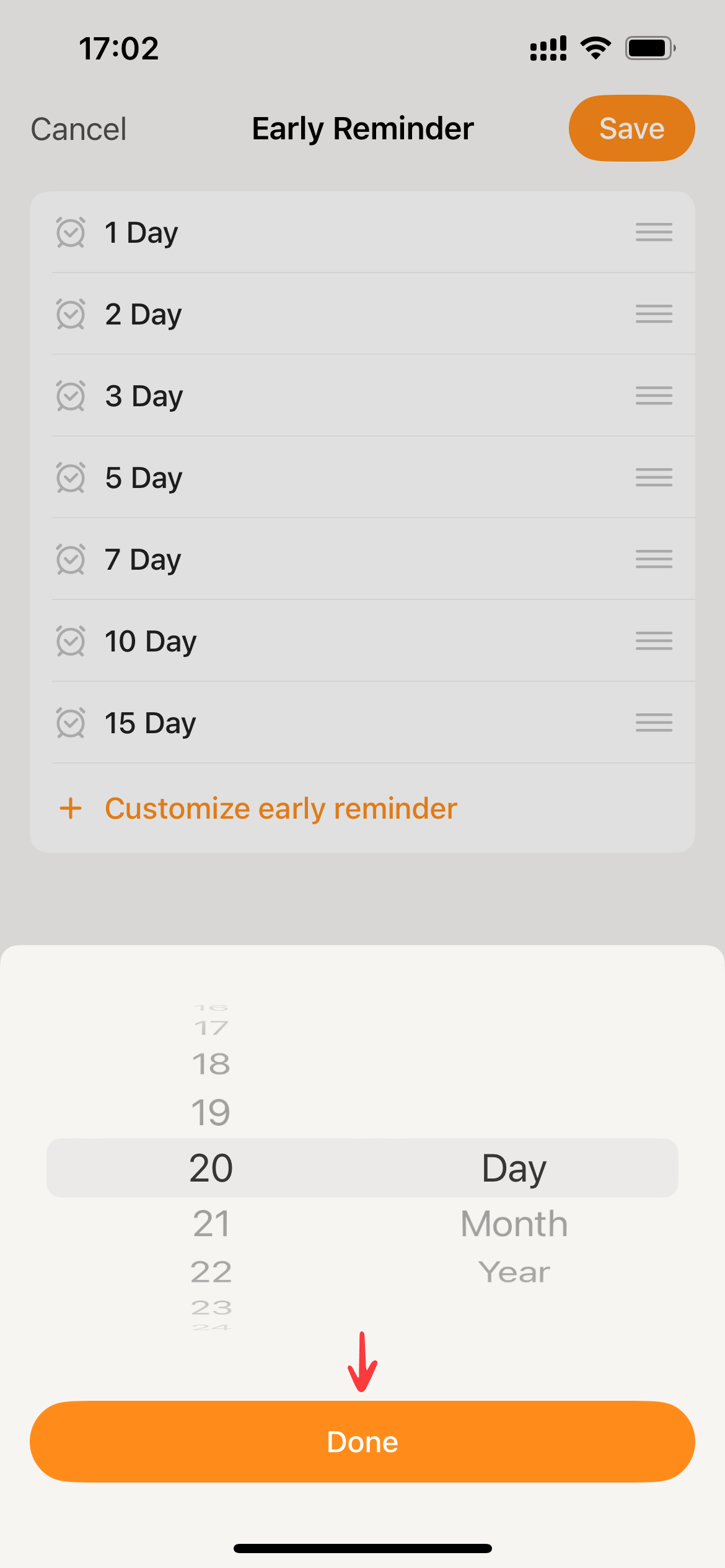
Customize early reminderbutton at the bottom of the page to open the custom days adding page.
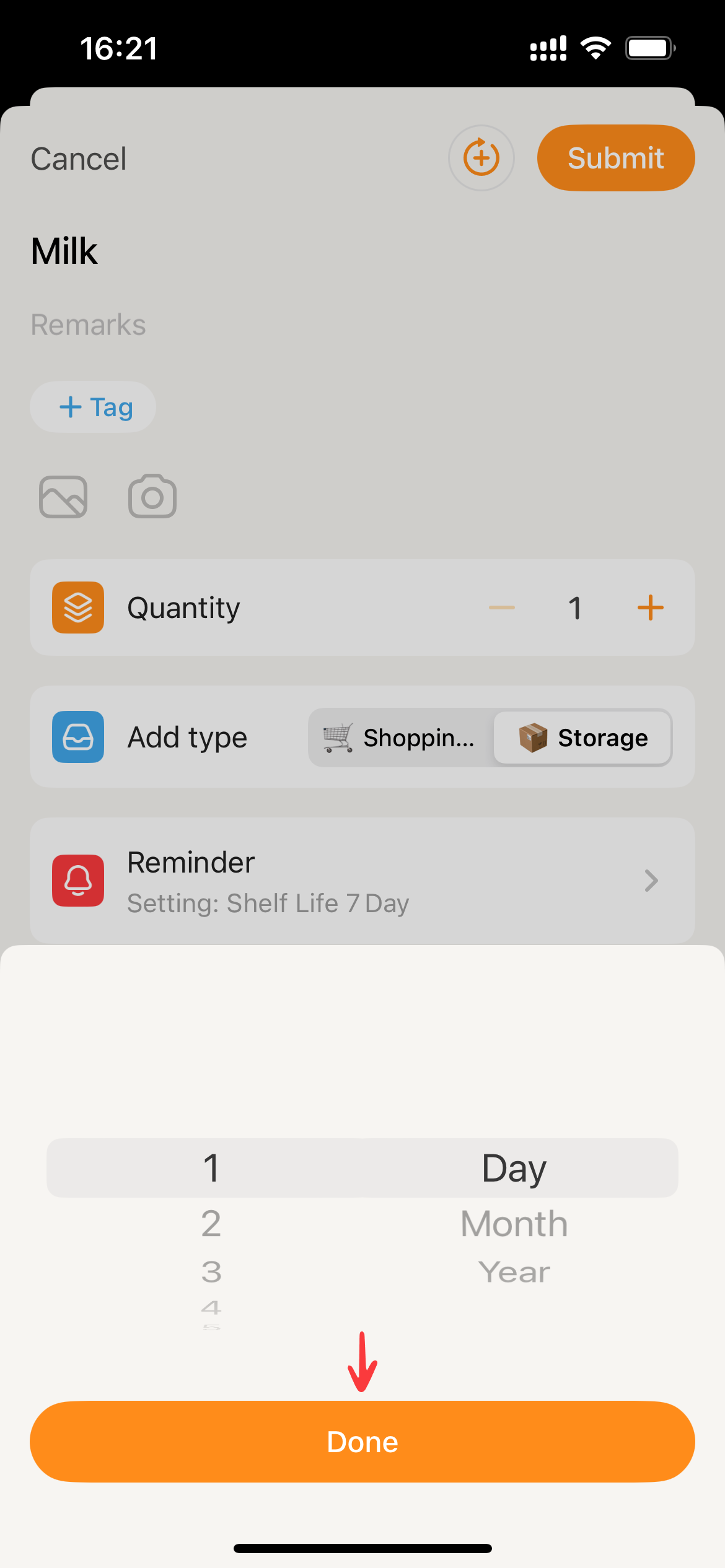
- Based on your needs, select the desired number of days and units to add, then click
Done. Sorter will proceed with updating the data accordingly.
Set Early Reminders in Advanced
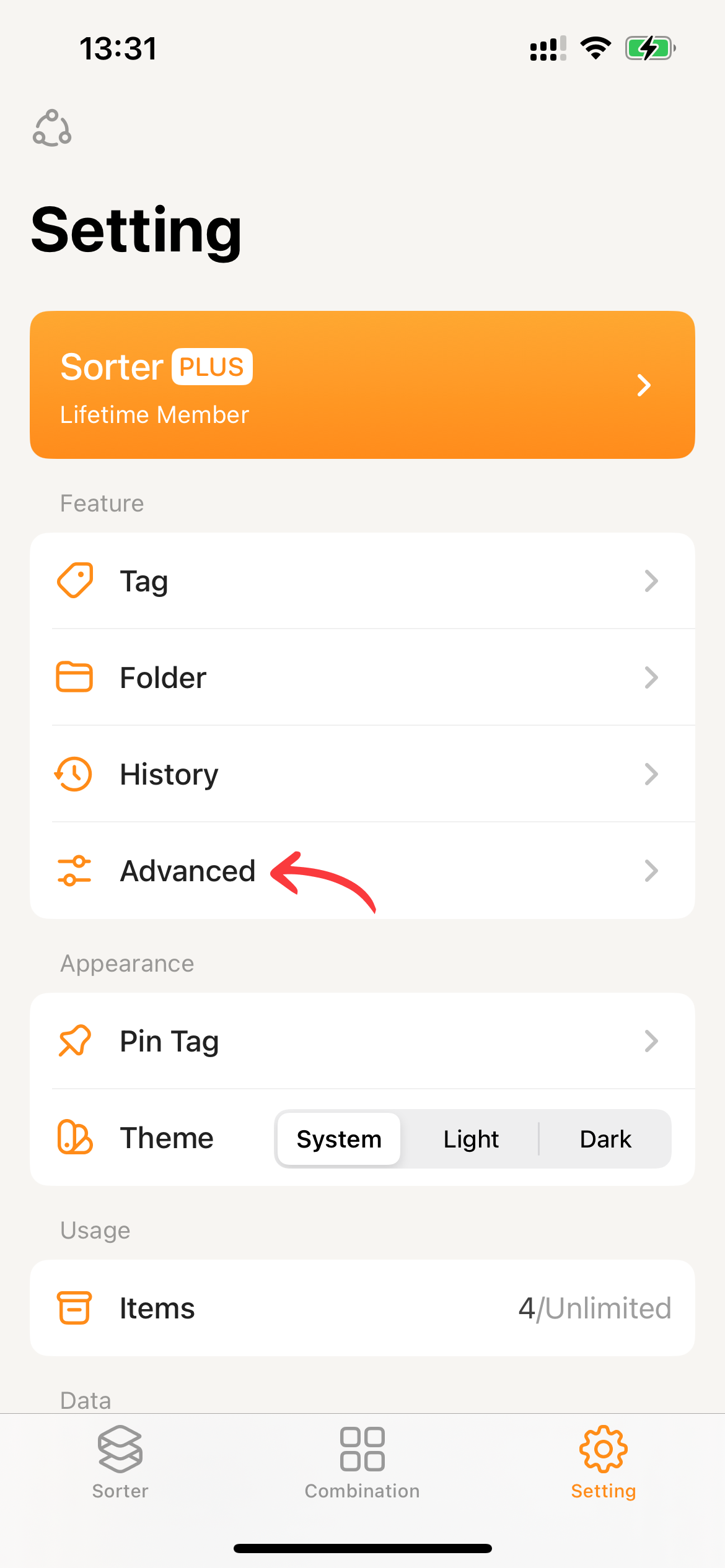
- Switch to the “Settings”, click on
Advanced.
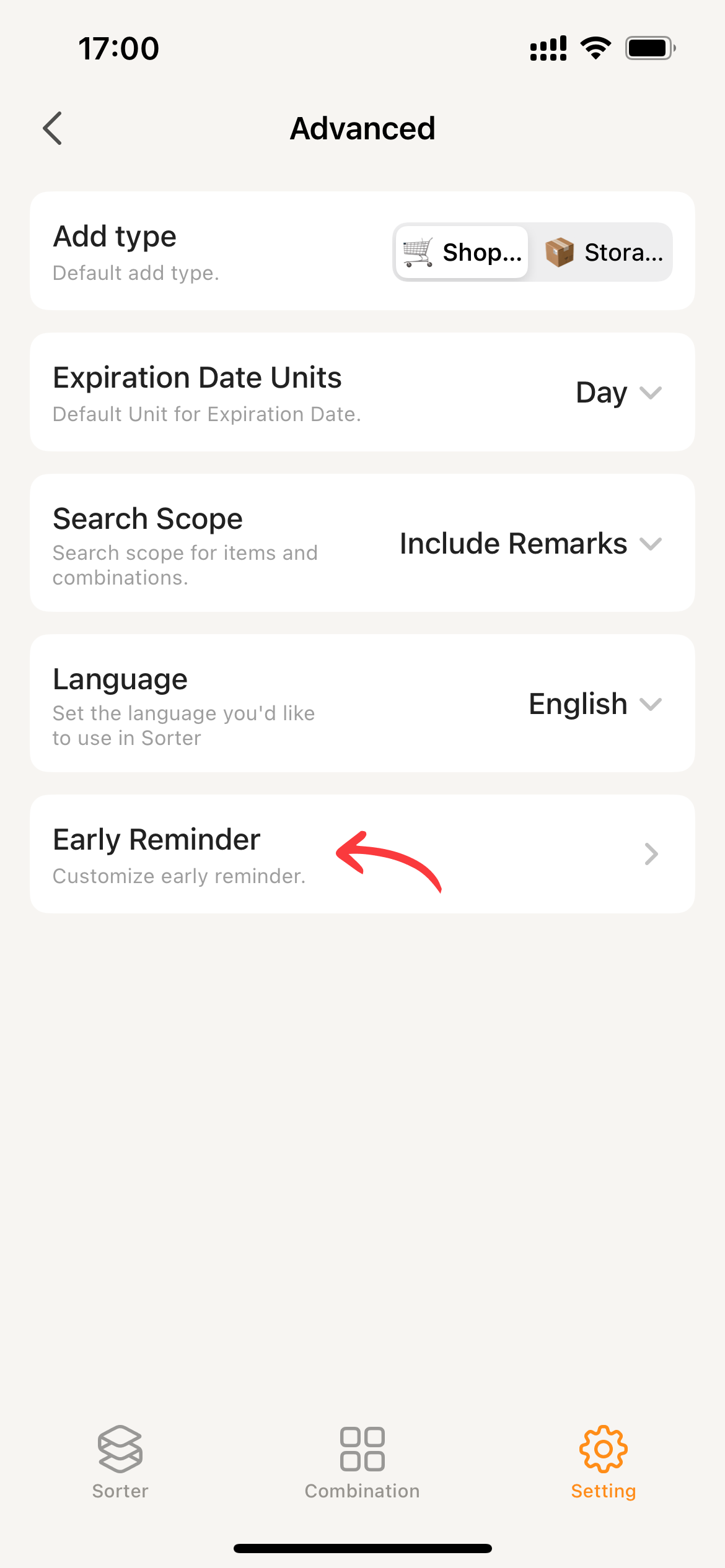
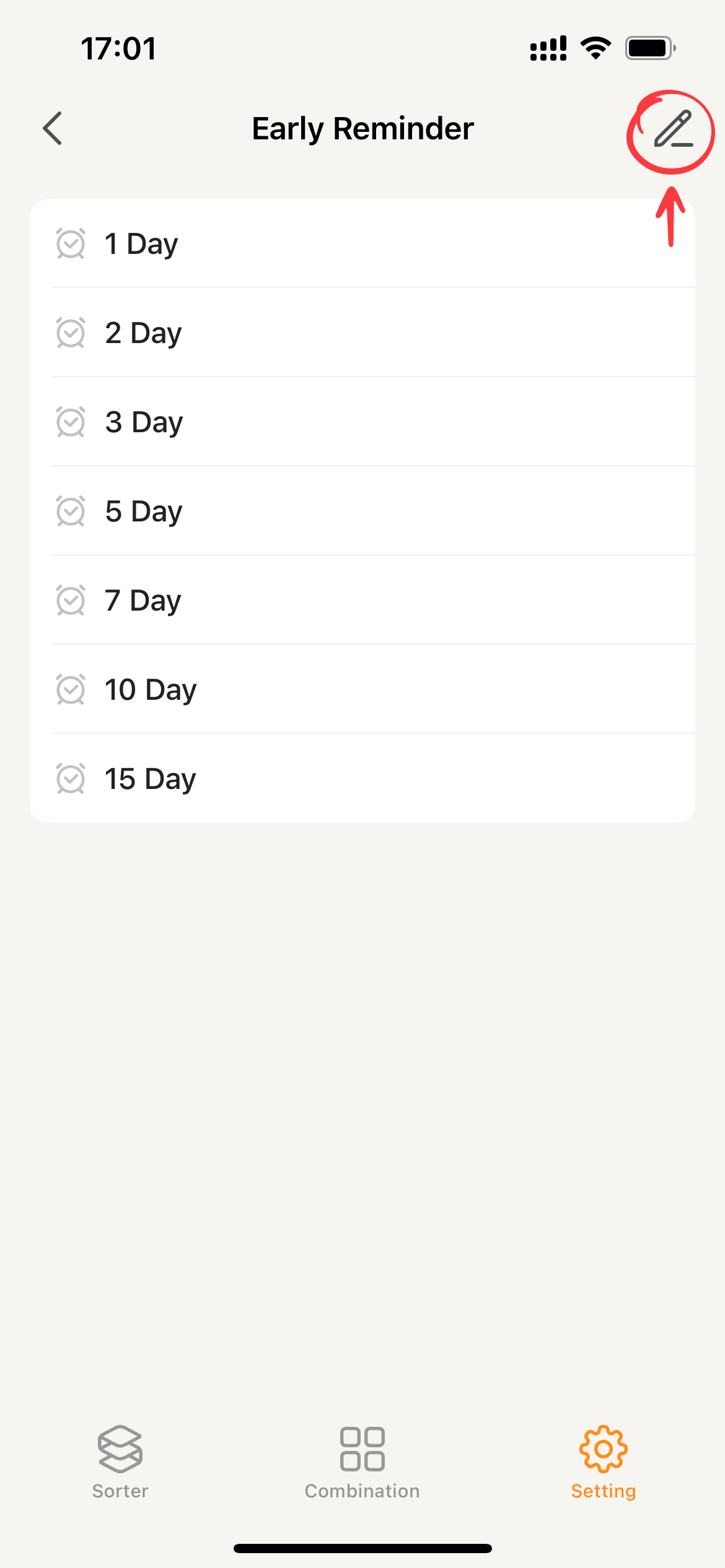
- Click on ‘Early Reminder’ to navigate to the early reminder list. This list displays the currently set early reminders.
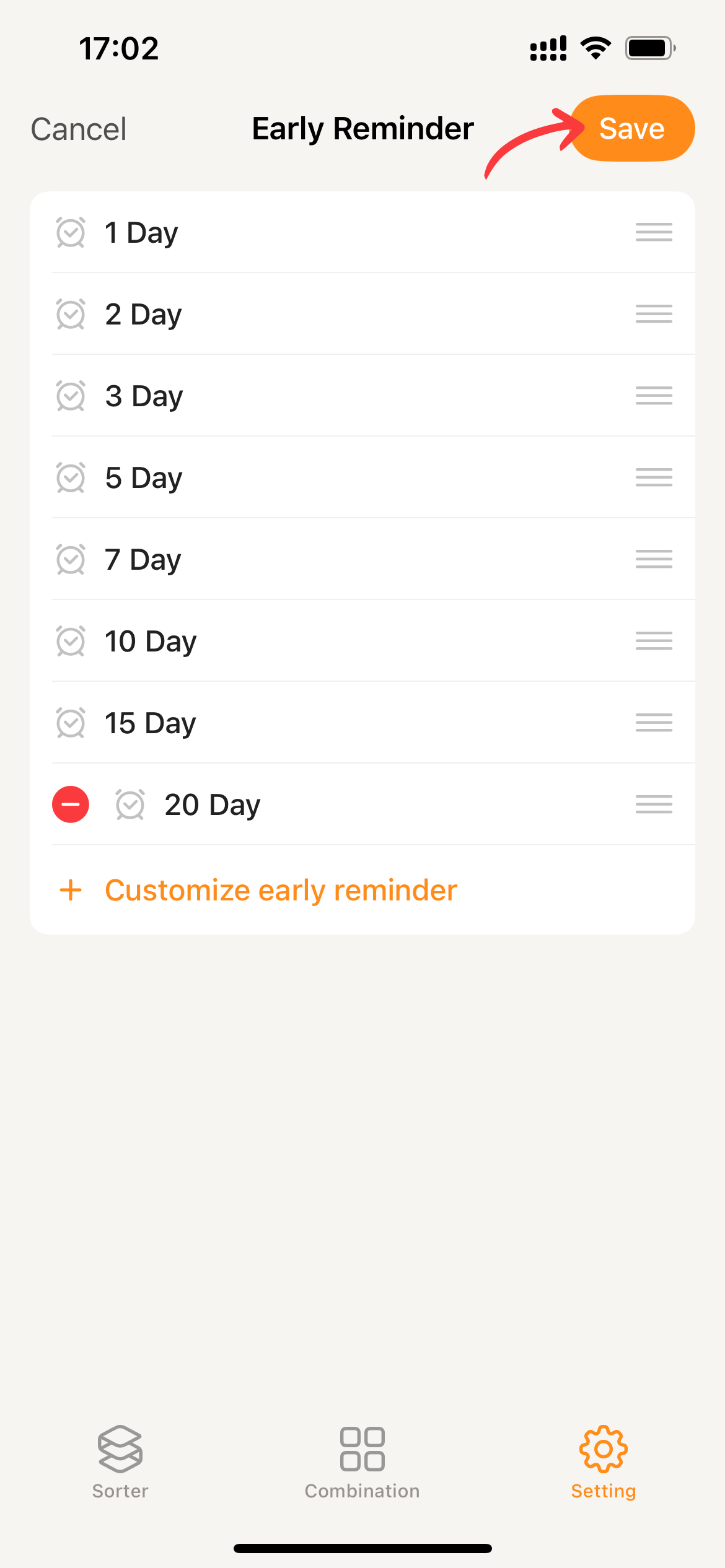
- On this page, click the ✏️ icon in the upper right corner to navigate to the early reminder management page. Here, you can add new early reminders or adjust the display order of existing reminders.
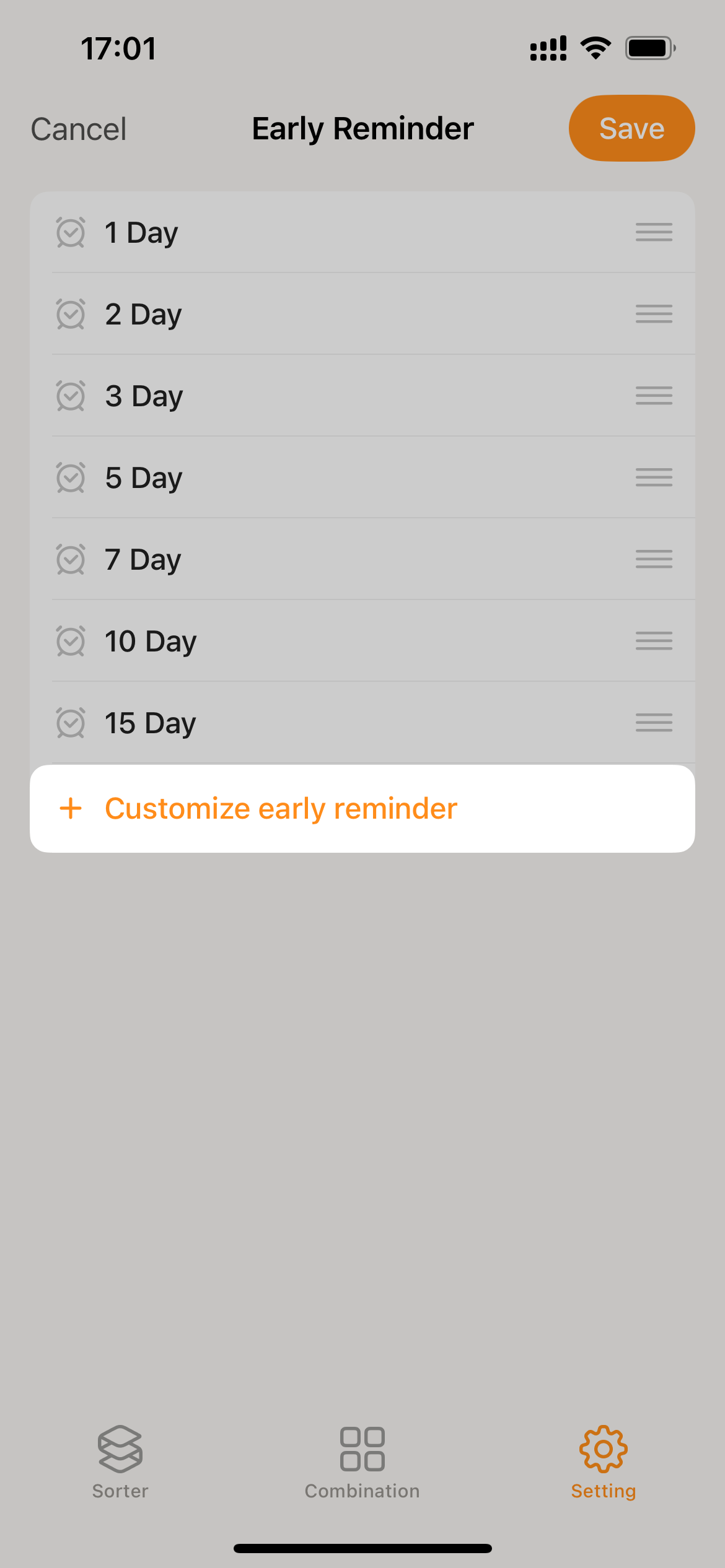
- Click
+ Customize early reminderto bring up the add custom early reminder page. After adding, clickDoneto complete the addition.
- “To adjust the order, long press on the early reminder card.”
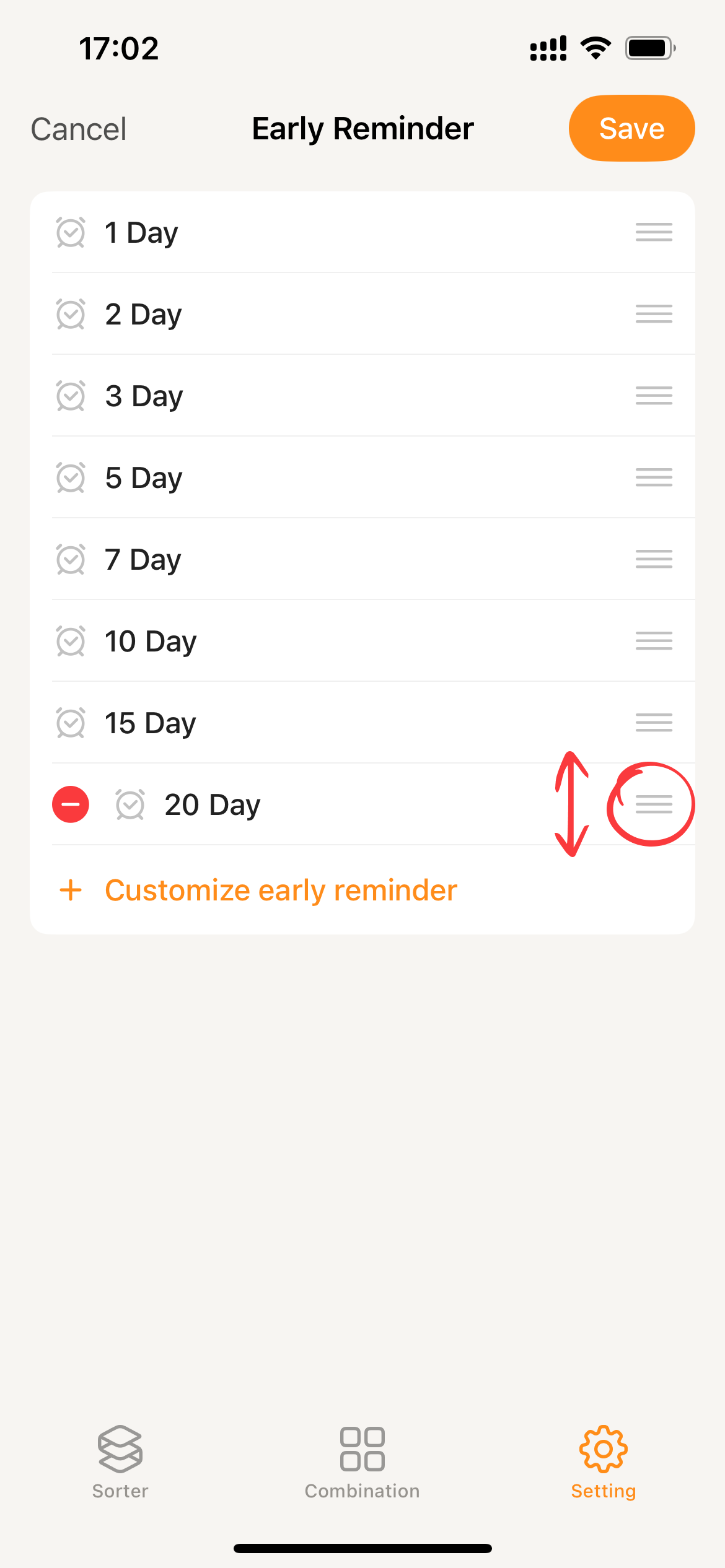
- After completing the settings, click
Save, and Sorter will update the data accordingly.
If an early reminder that has been set for items is deleted, Sorter will remove the corresponding early reminder from those items. All other existing reminders will continue to function as scheduled.