Directly Adding New Items
Prerequisite Users have editing permissions in the current collaborative space. Free Users: Limited to 100 items.
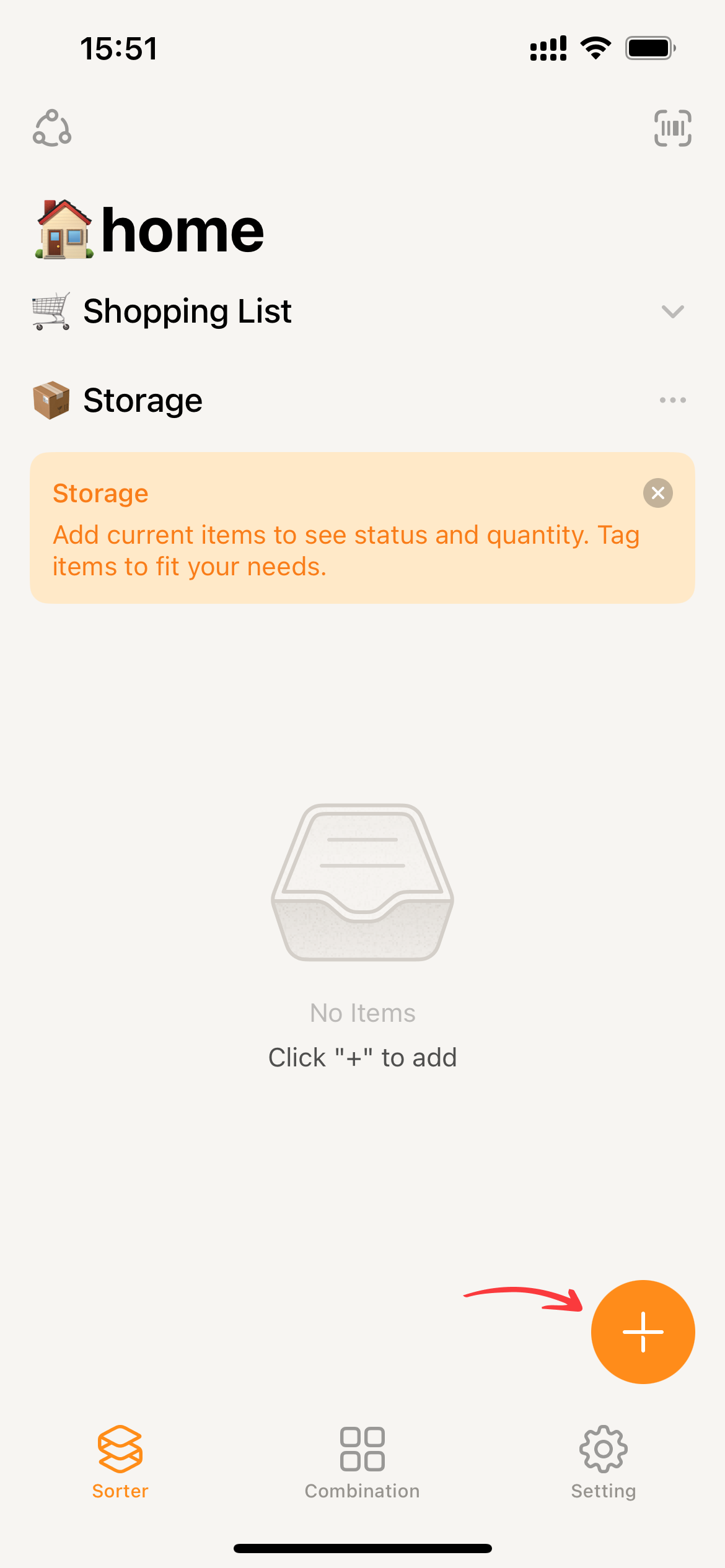
- On the home page, click
+to bring up the item addition page.
- Enter the item name and select “Storage” for the “Add type”.
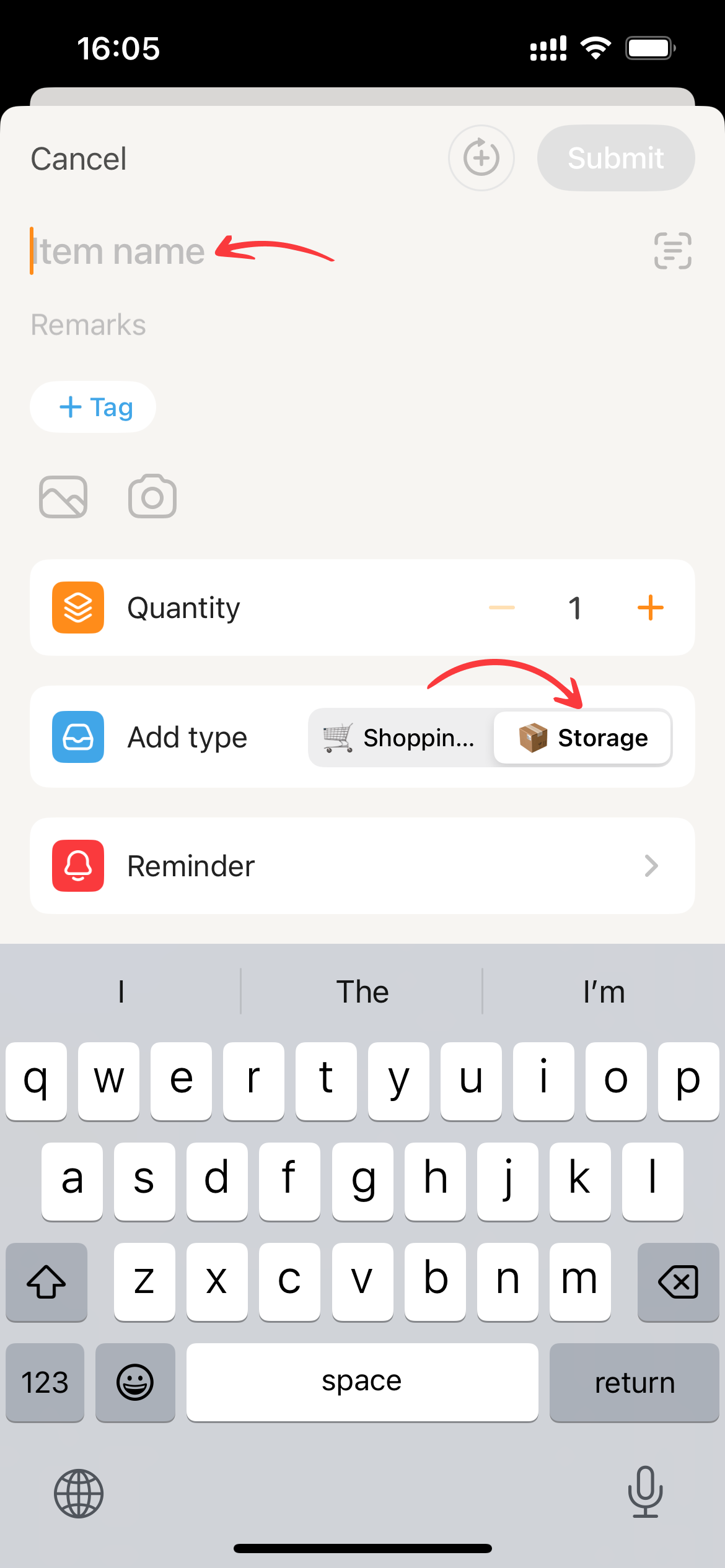
- Fill in the other details for the item, including notes, quantity, images, tags, expiration information, and barcode, as needed.
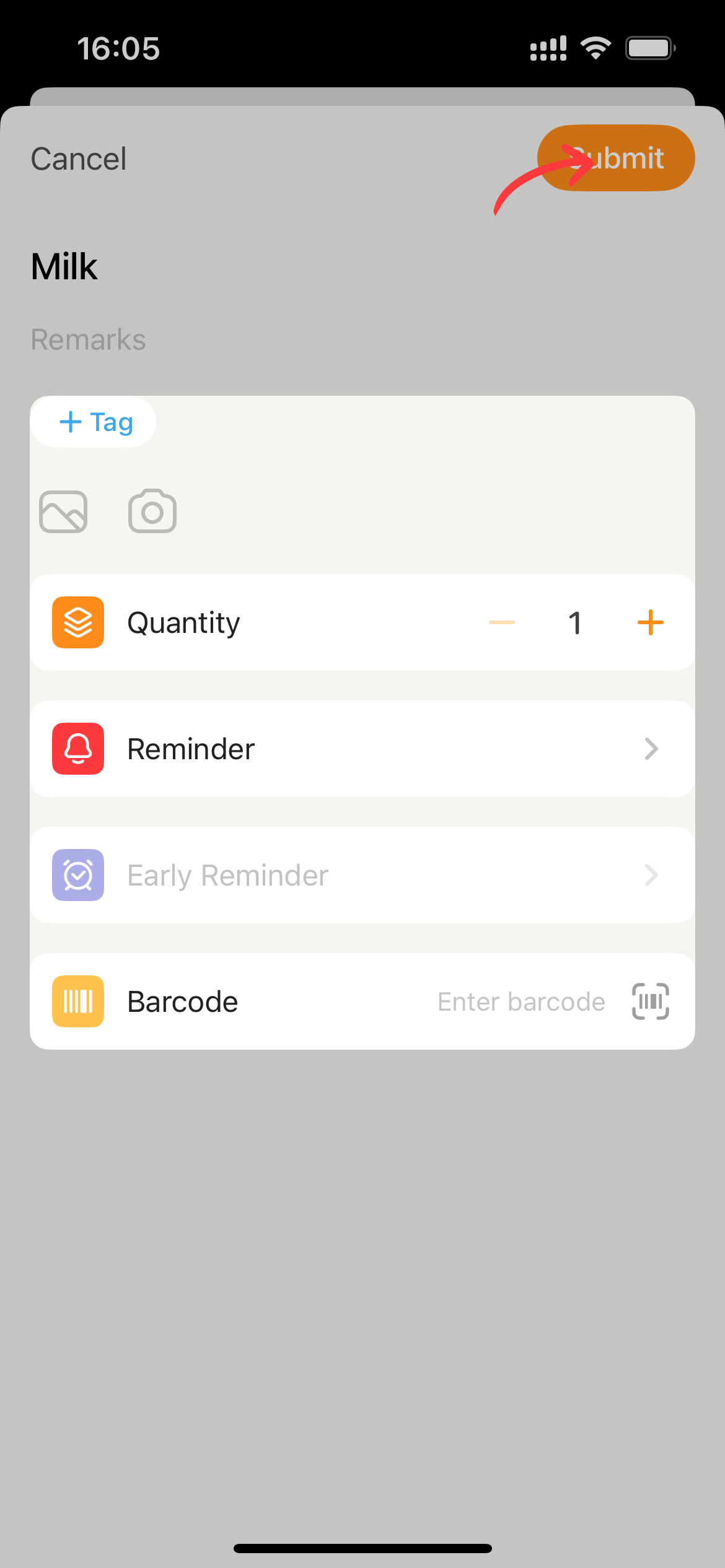
- Click
Submitand Sorter will proceed with adding the item.
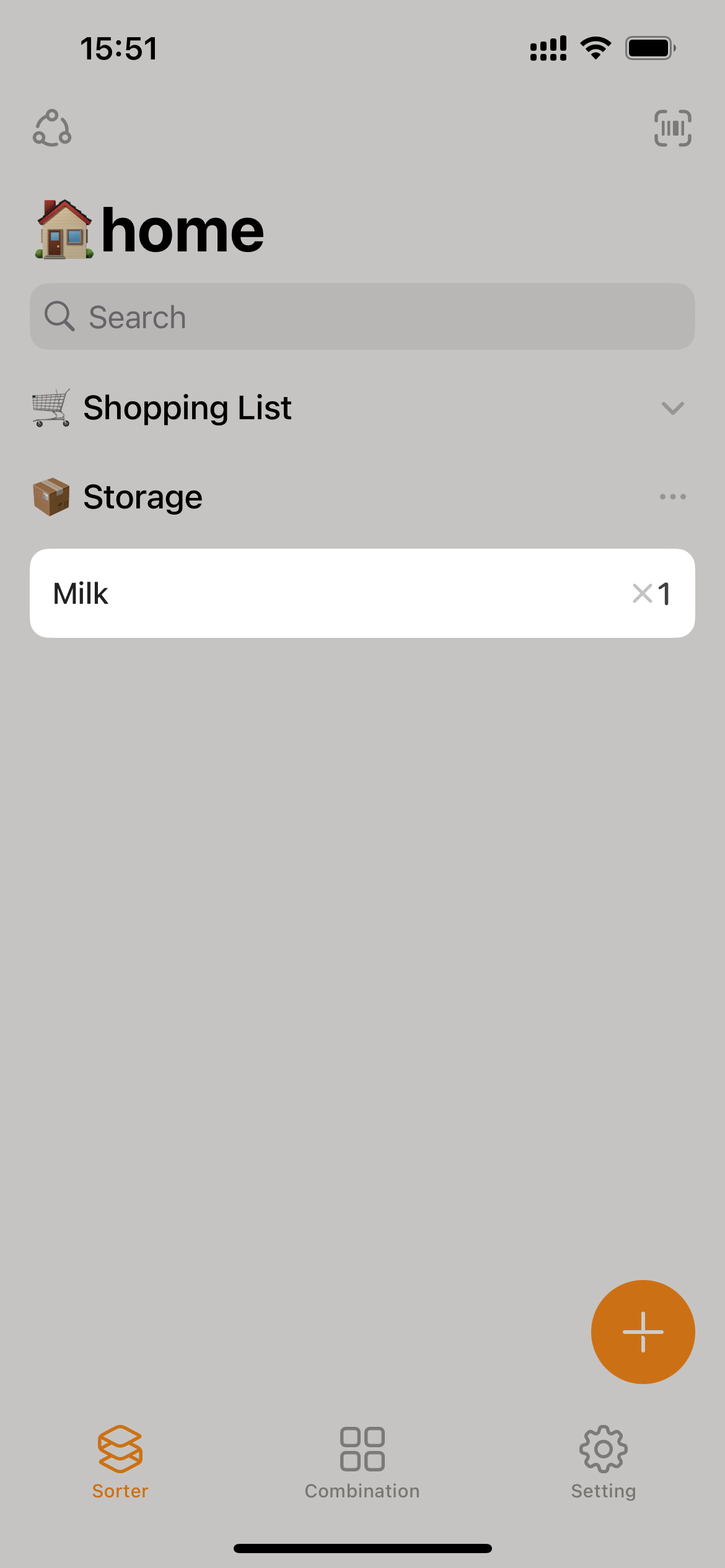
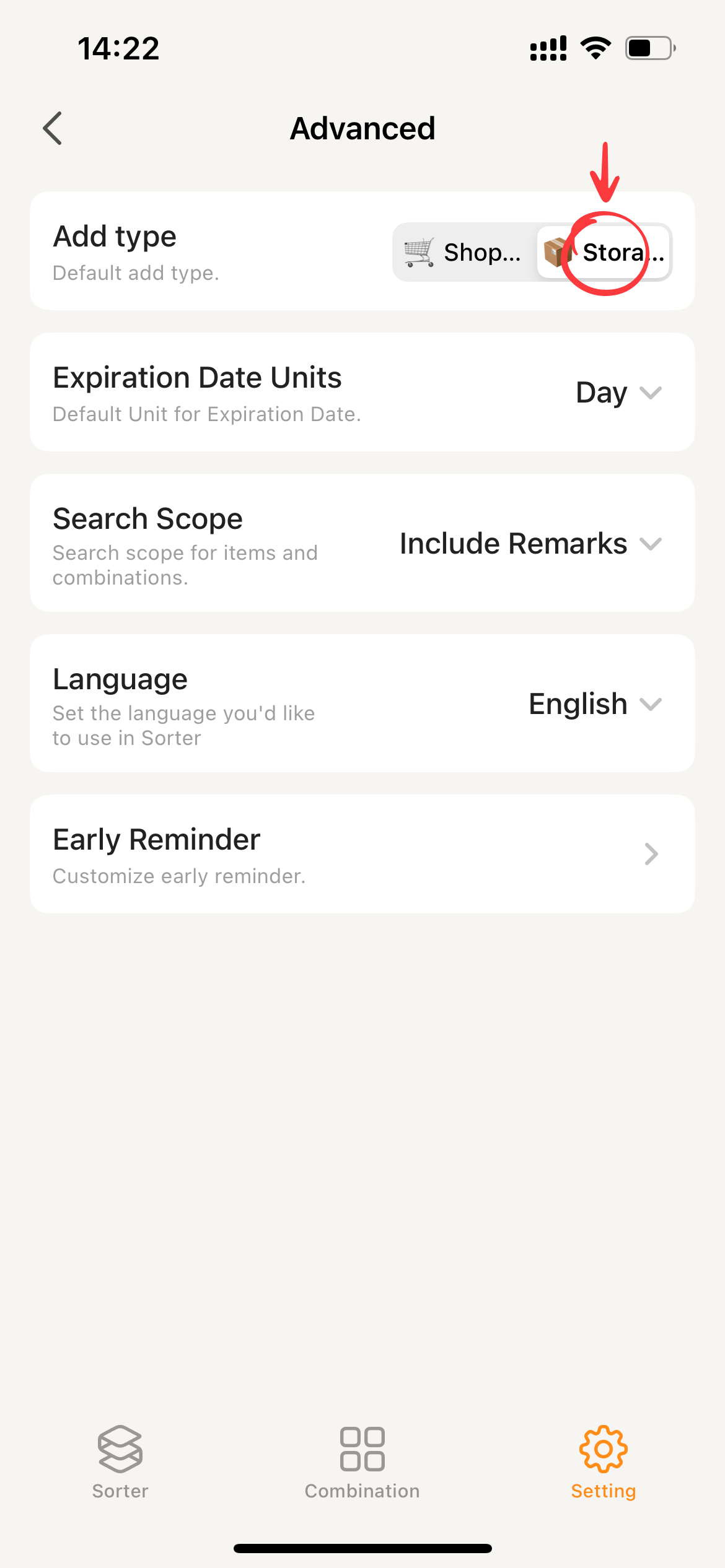
The “Add type” default setting should be changed from “Shopping list” to “Storage”.
- Switch to Settings and click “Advanced”.
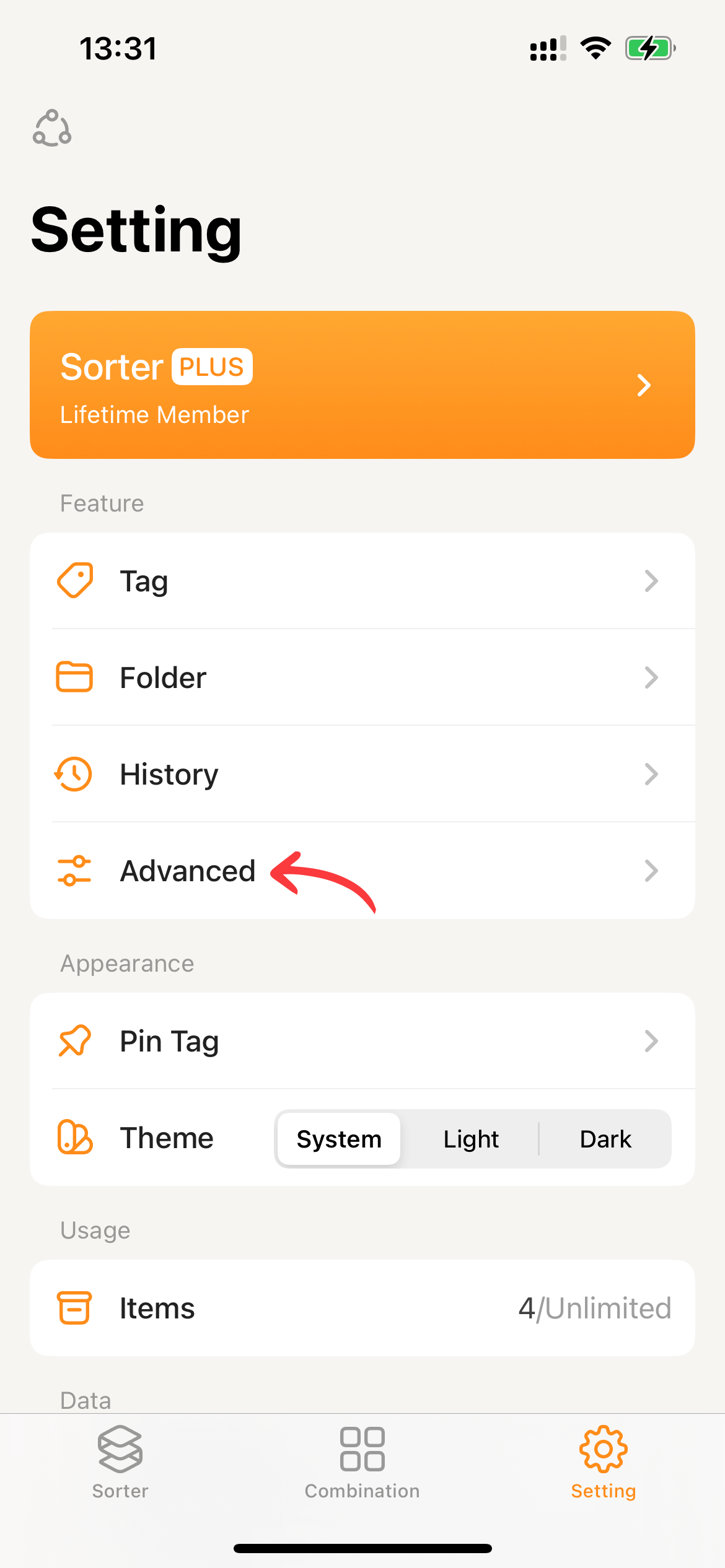
- Change the “Add type” component option to “Storage”. This way, when you enter the new item page, “Storage” will be selected by default.