Shopping list for new items
Prerequisite Users have editing permissions in the current collaborative space.
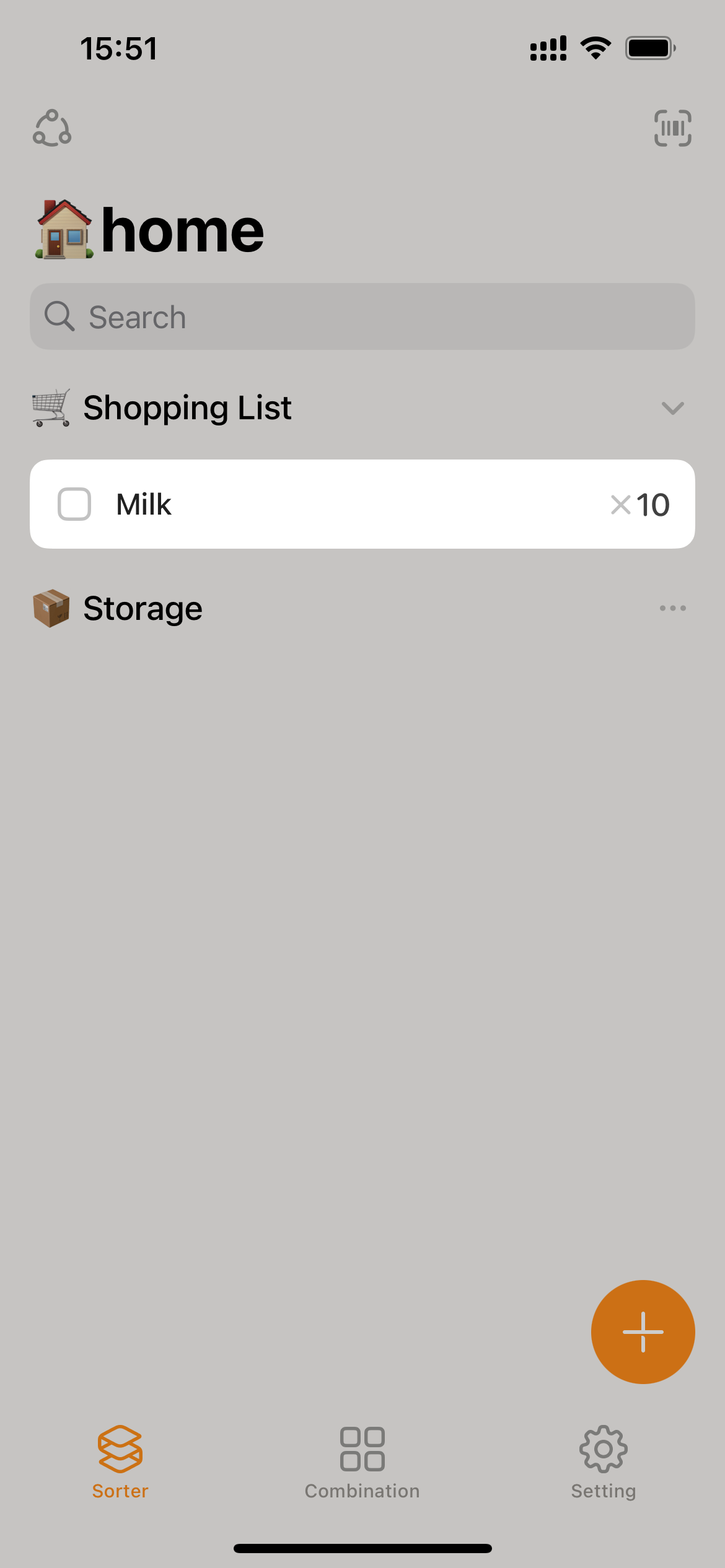
Sorter makes adding items to the Shopping List incredibly simple. It starts the same way as Add New Item so you don’t have to decide between adding a new item or adding to the Shopping List right away—you can switch between them midway through the process.
- On the homepage, tapping the
+icon will bring up the add page.
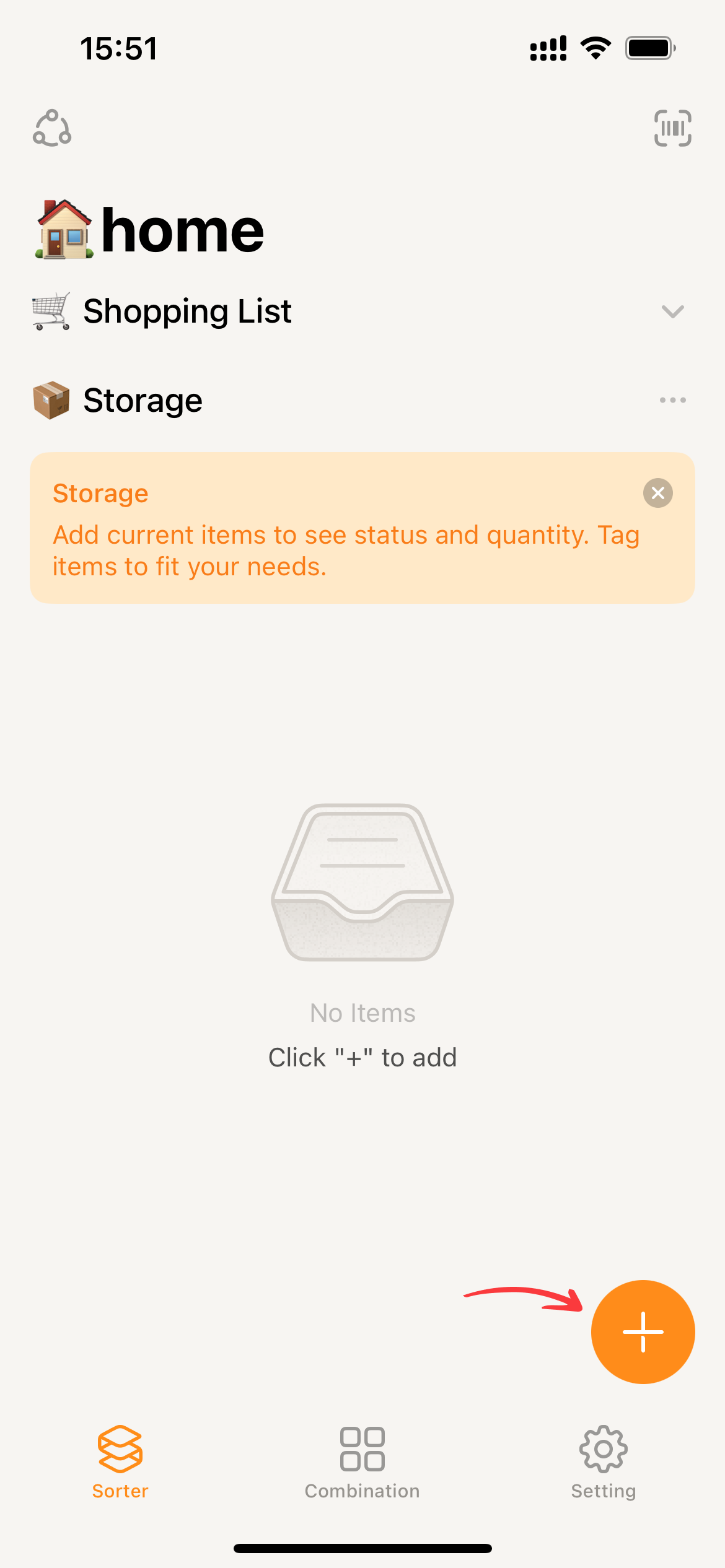
- The add type should be kept on “Shopping List,” which is Sorter’s default option. However, you can also change it in the advanced settings.
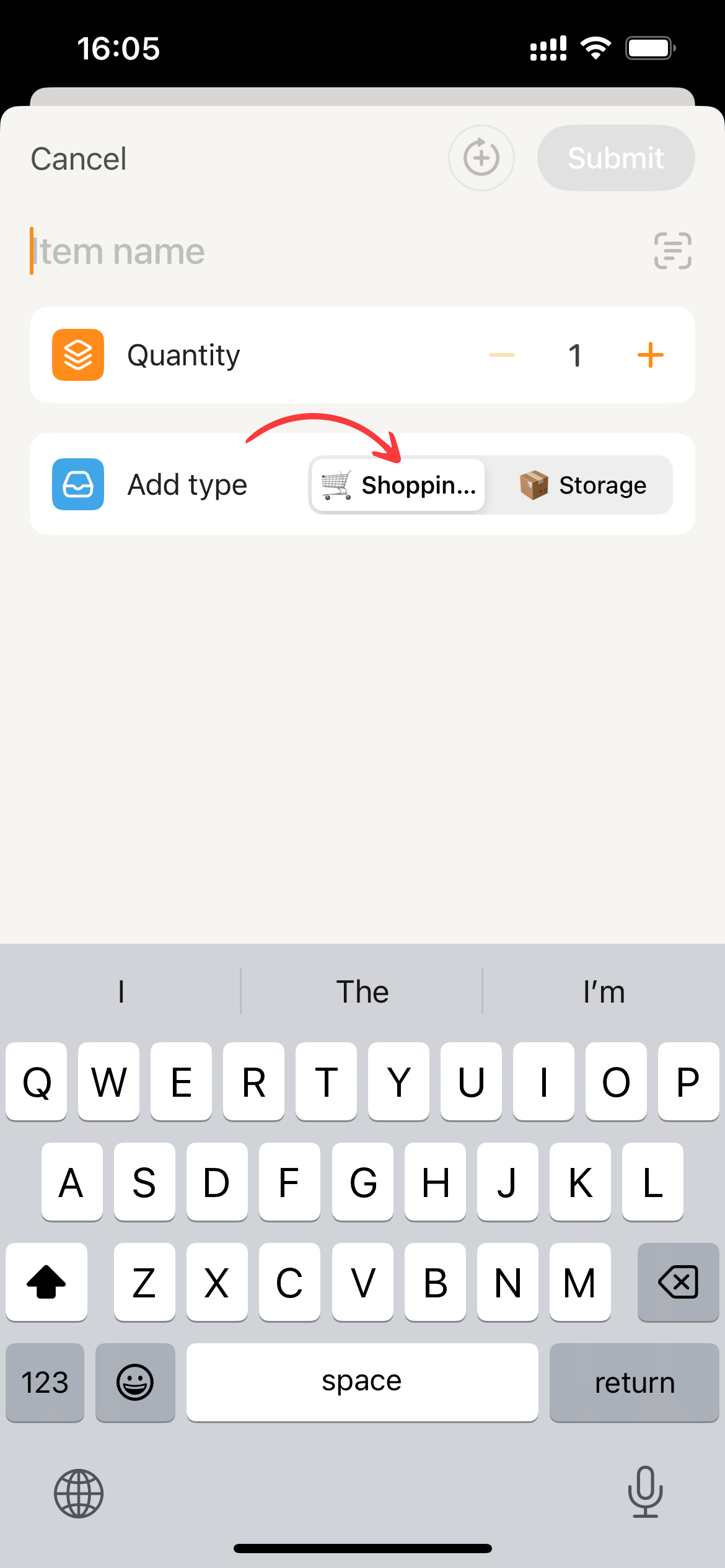
- Enter the item name, then modify the quantity in the shopping list as needed.
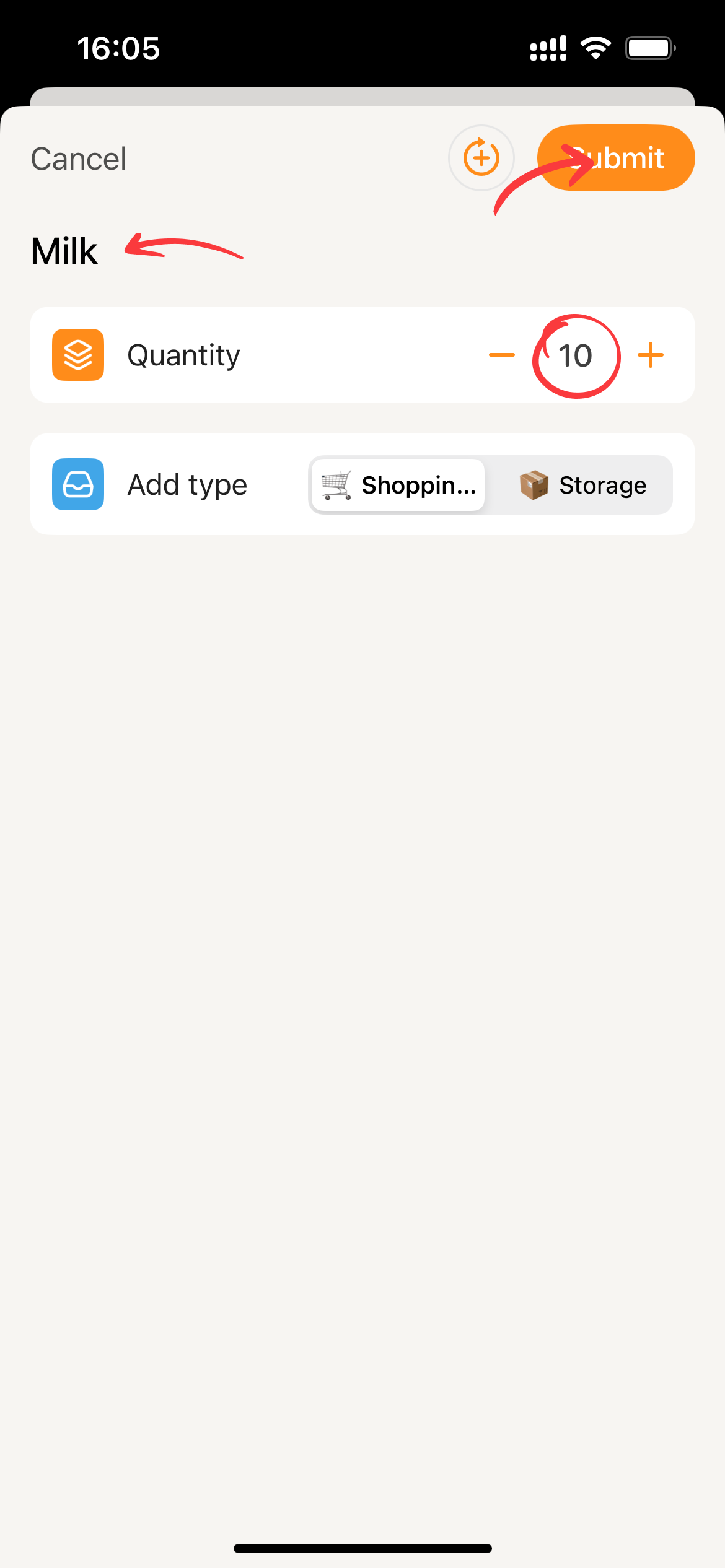
- Then click
Submit, and Sorter will update the data.
Instructions for adjusting quantity.
You can directly click on the + or - buttons of the quantity component to make adjustments. Each click changes the quantity by 1. Currently, the quantity range is between 1 and 999.
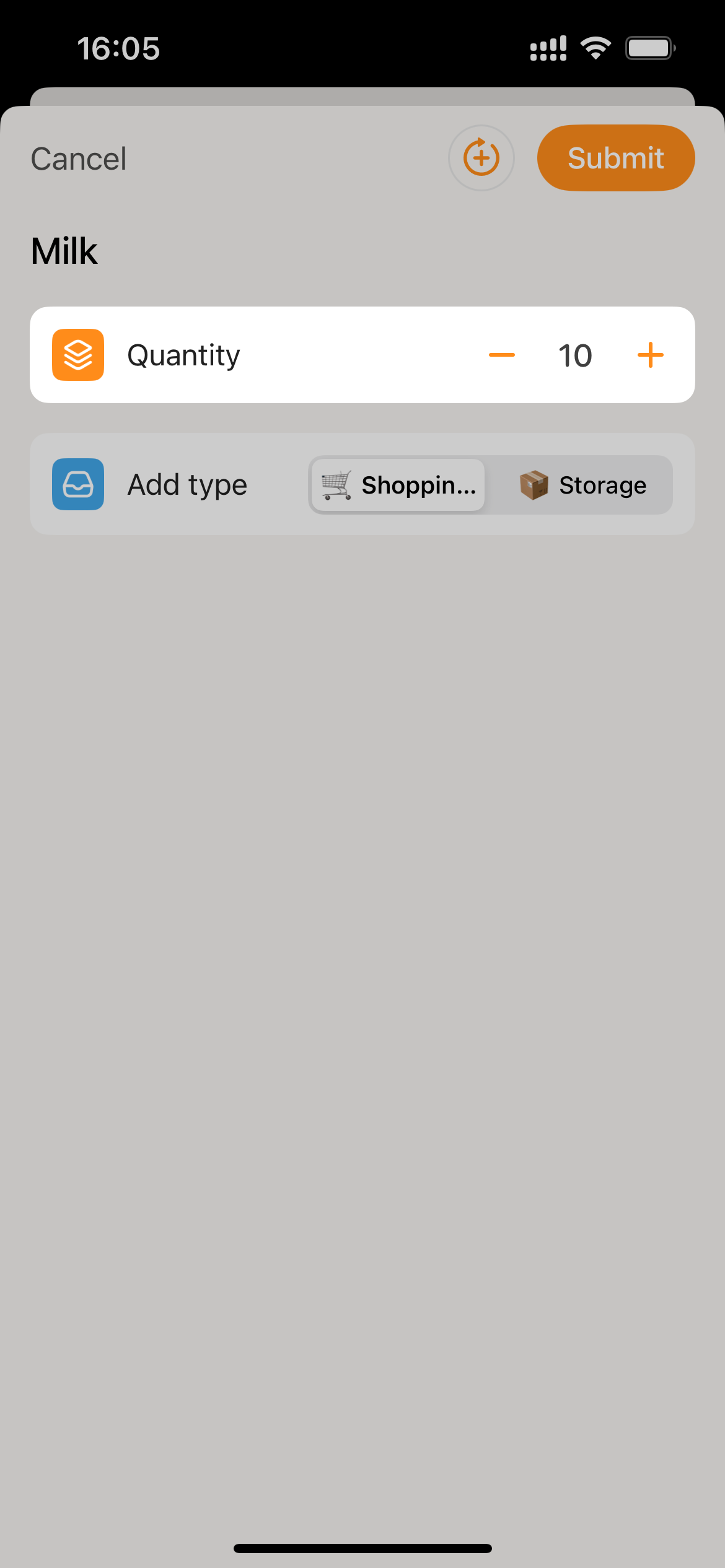
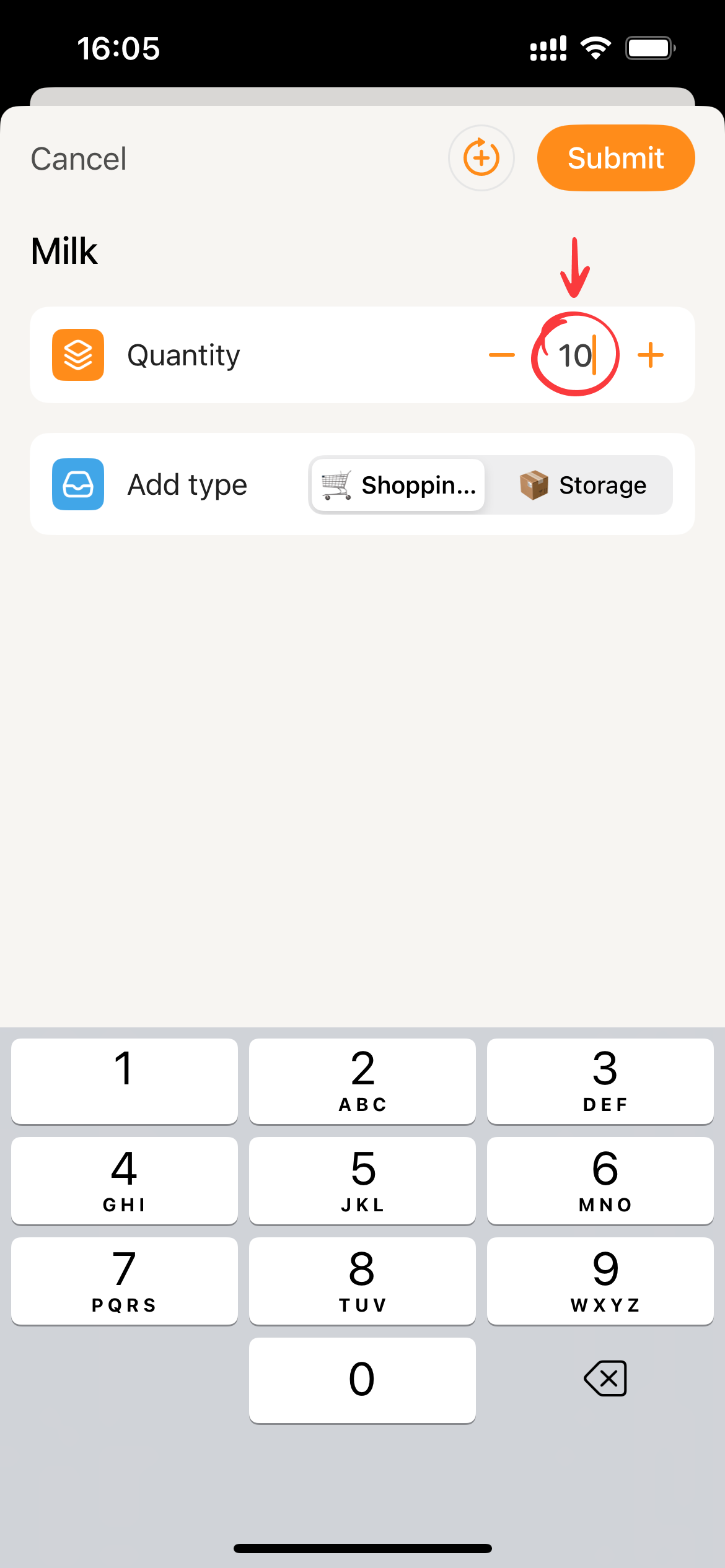
Another way is to directly tap on the number, which will bring up a numeric keyboard. You can then input the desired number directly.