Consume Stock
Prerequisite
- Users have editing permissions in the current collaborative space.
- The stock of the item is greater than or equal to 1.
When we use or discard items, we should promptly perform the corresponding “consume” operation in Sorter. This ensures the proper flow of items within the system.
Sorter supports the following 2 consumption methods:
Consume on the item details page
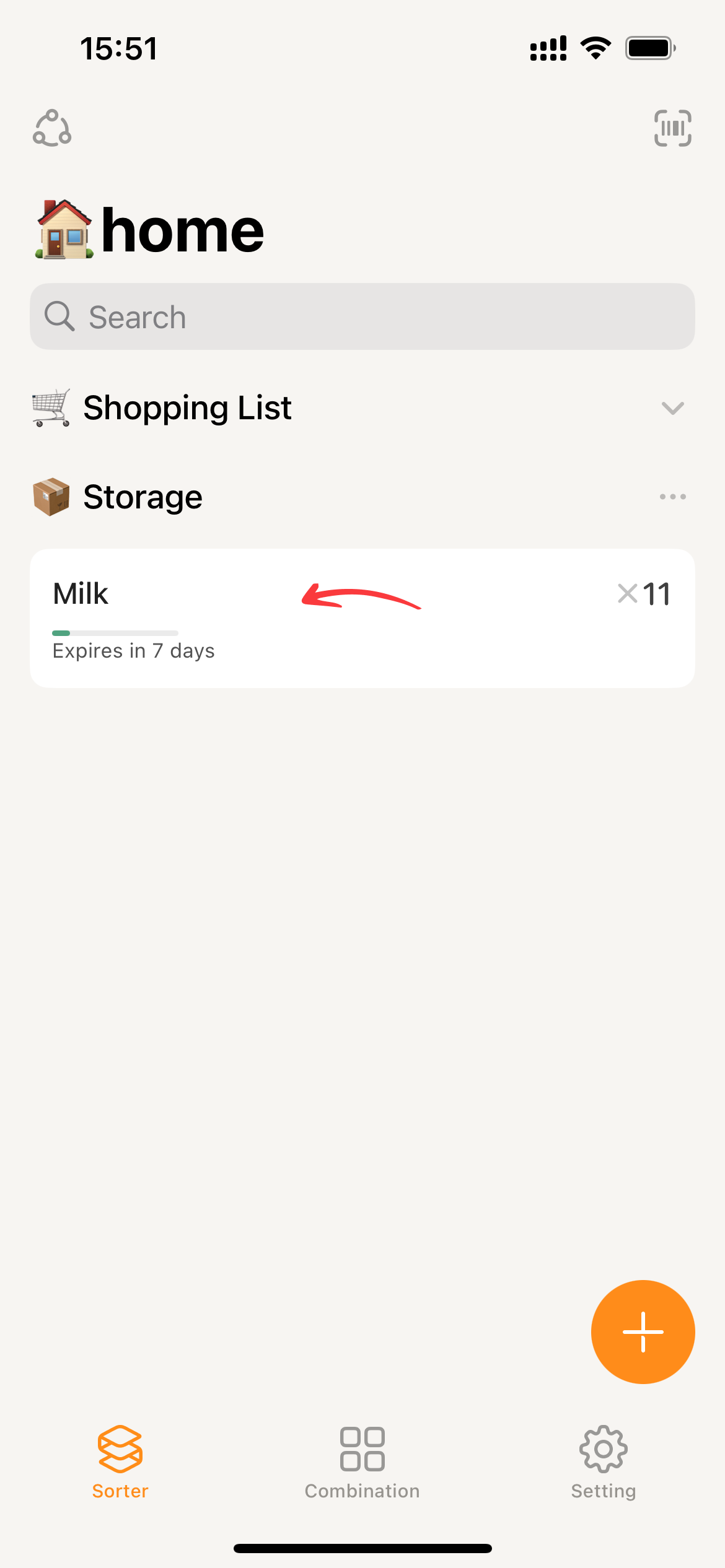
- Click on the item card to enter its details page, and switch to the stock(default position).
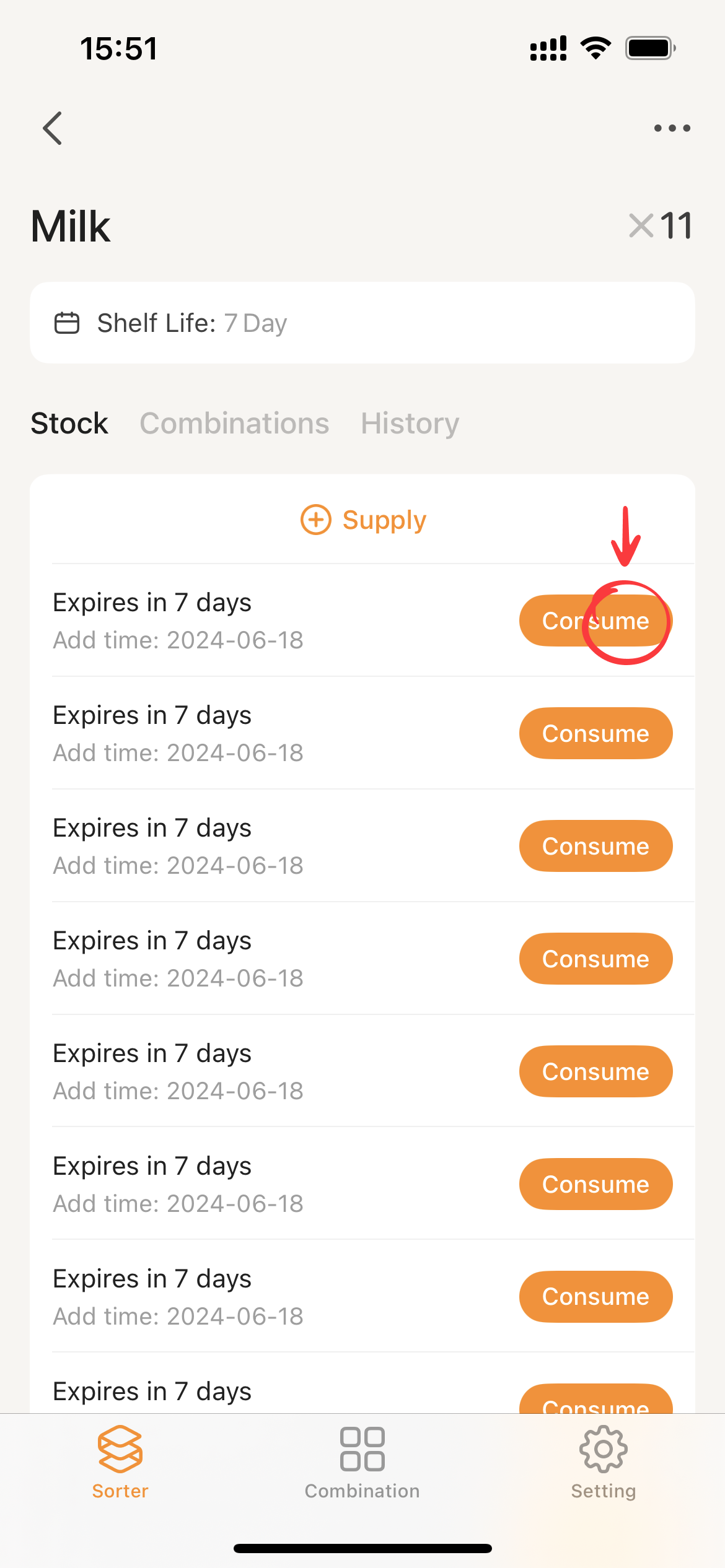
- Click the
Consumebutton on the right side of the stock card, and Sorter will perform the consumption operation.
Quick consumption
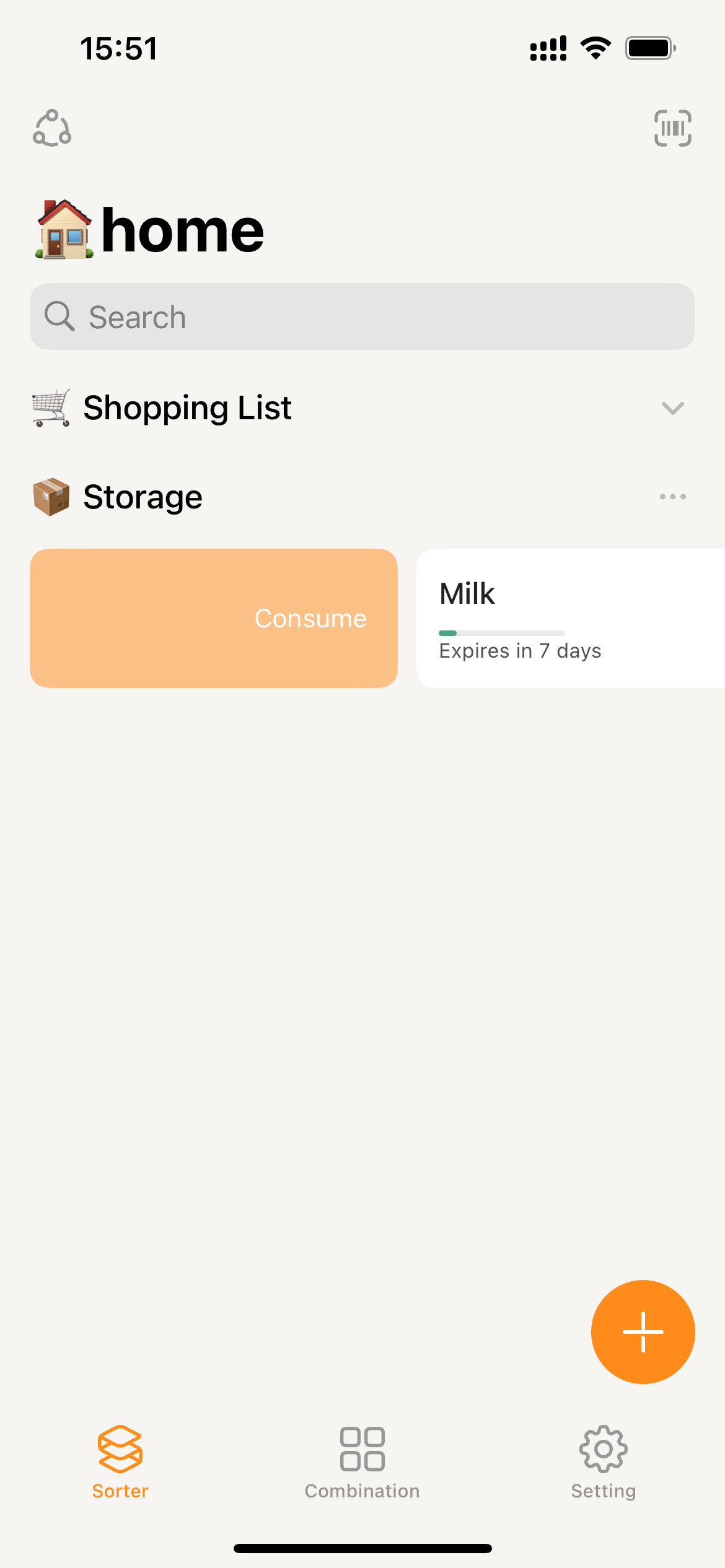
Quick consumption will prioritize expiring stock first. If there is no expiration information, consumption will proceed in the order of stock addition time.
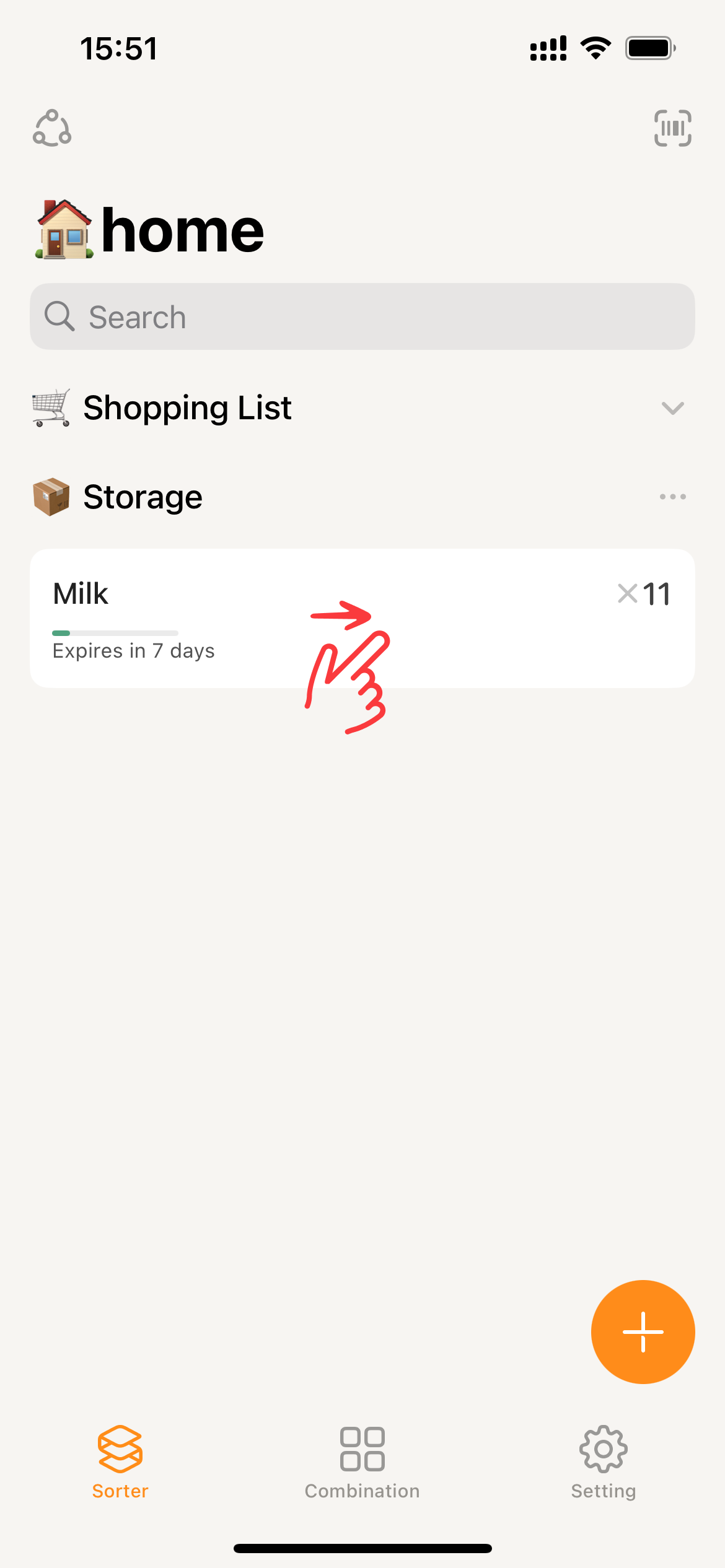
- Hold down on the item card, swipe ➡️ to reveal the
Consume, release your finger to display the button, then click it to perform the consumption.
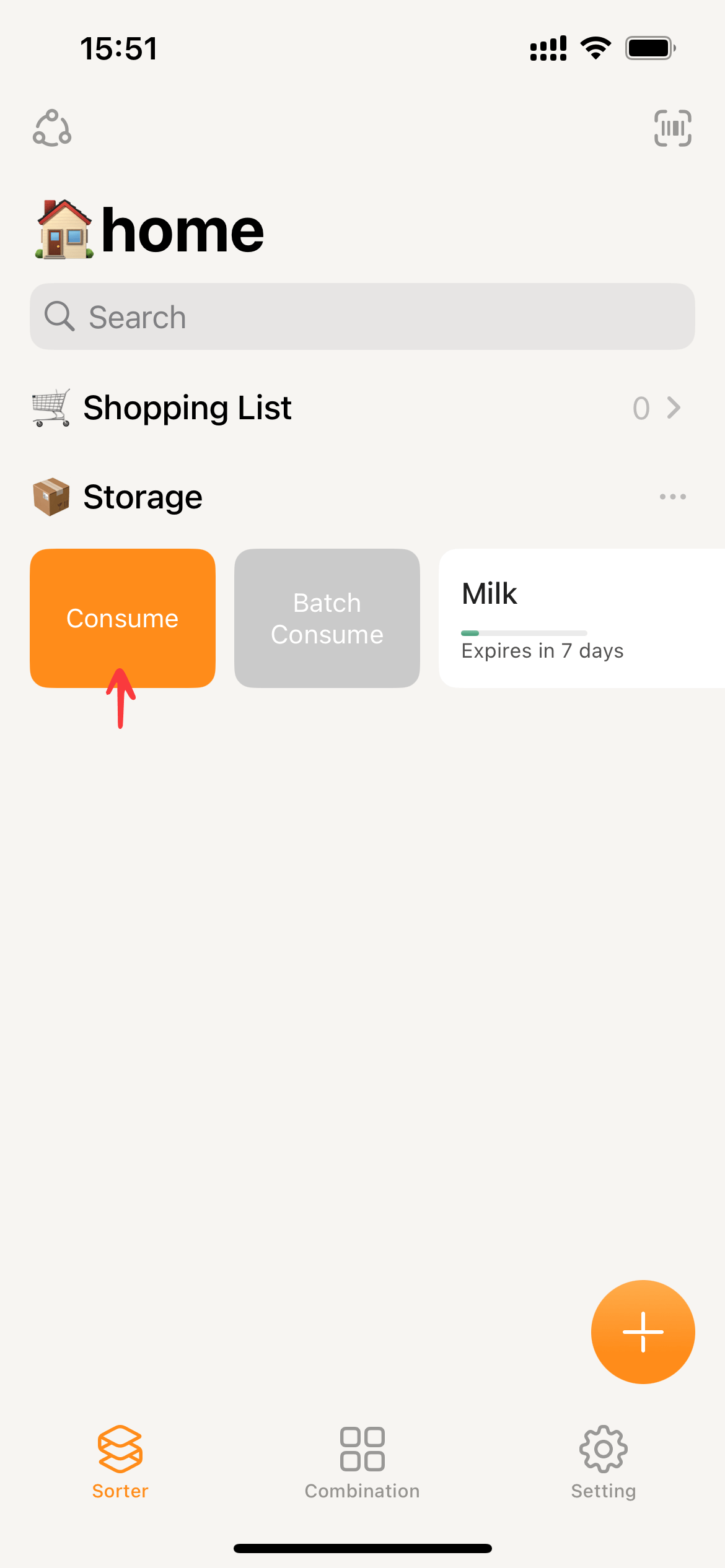
- Hold down the item card and continue swiping to the ➡️ until the text alignment changes from center to right, or the device vibrates. Release your finger, and Sorter will execute the consumption operation.
Additionally, #Quick consumption is also supported within Combination, making it convenient for scenarios such as meal preparation for easy consumption.