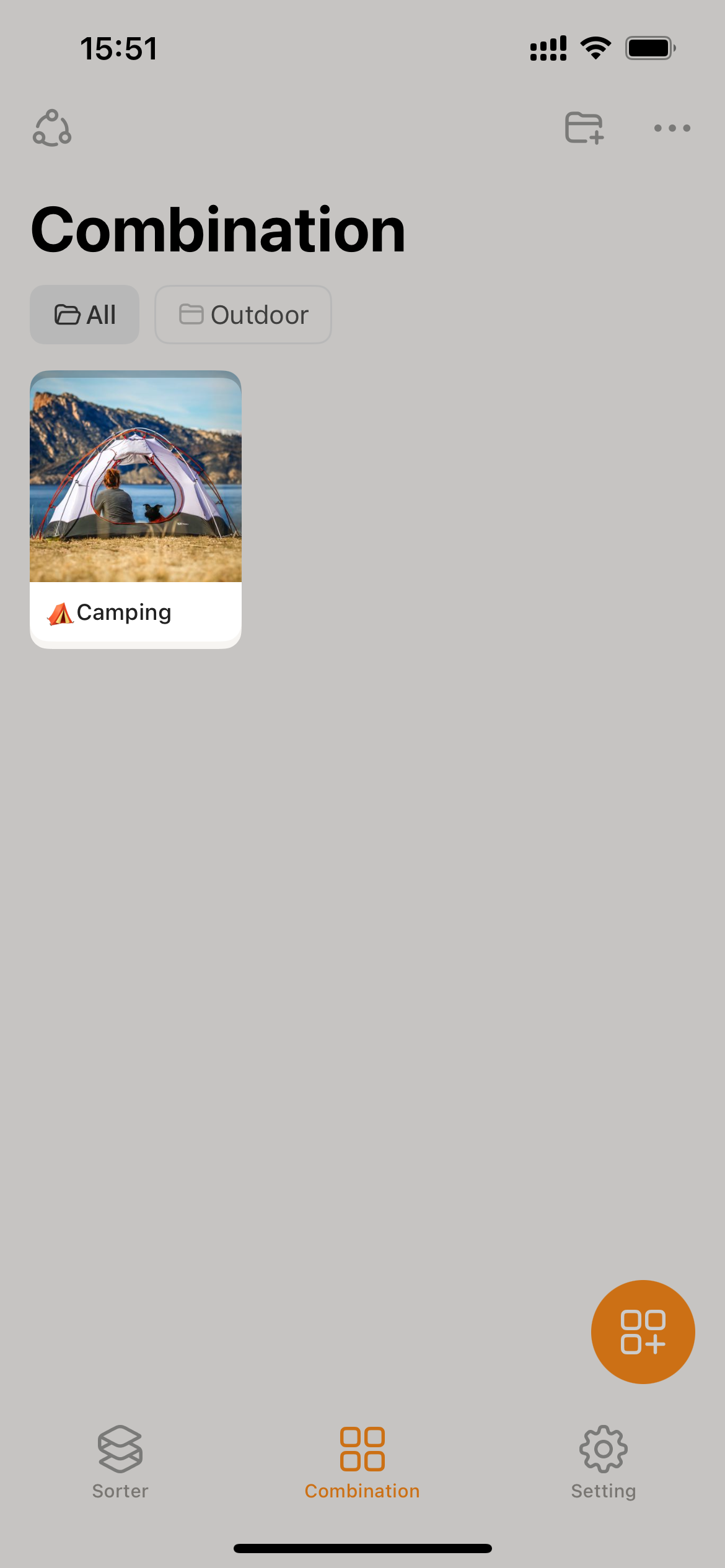
Create Combination
Prerequisite
- Users have editing permissions in the current collaborative space.
Here are two methods for creating combinations using Sorter:
Using the “Create Combination” Feature
- Go to “Combination”, tap the
+button to display the “Create Combination” page.
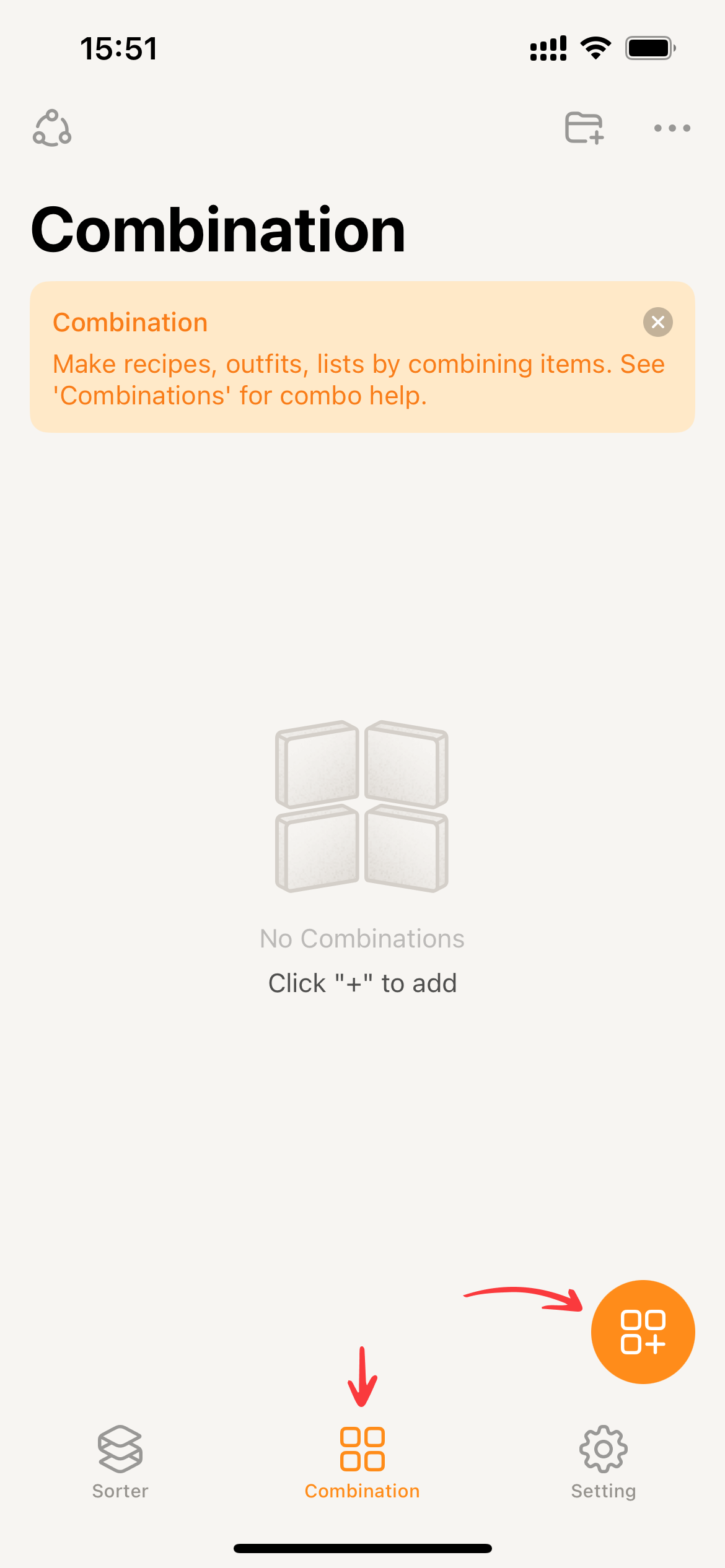
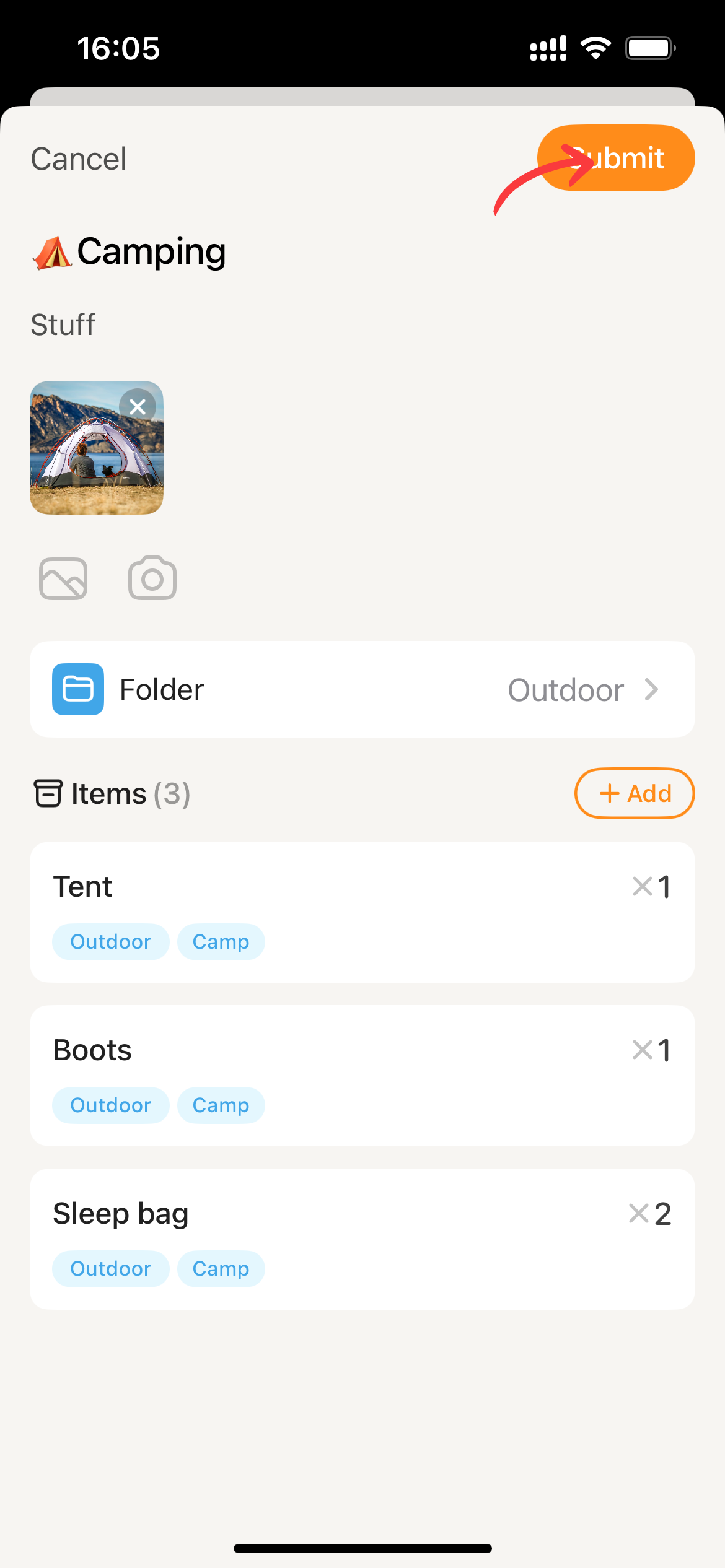
- Enter Combination Name.
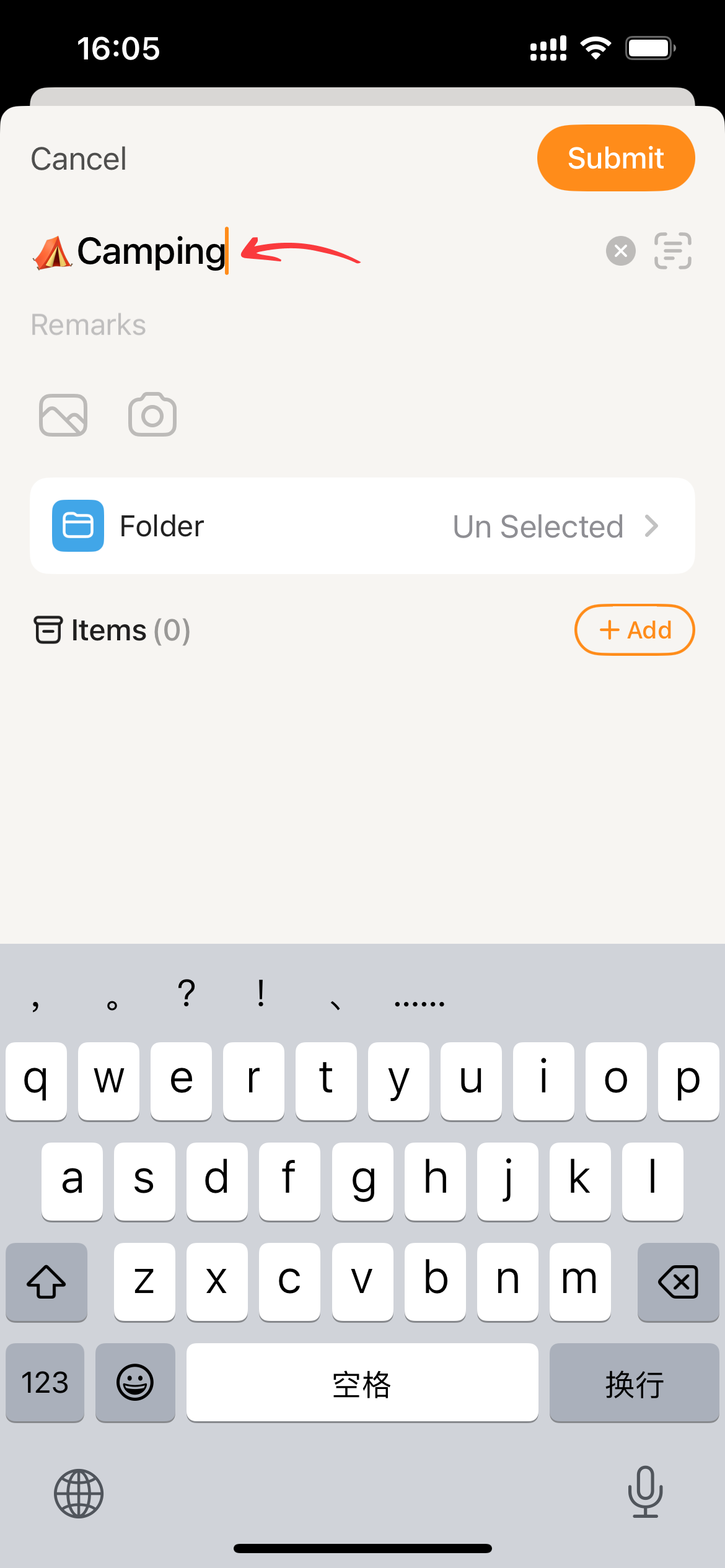
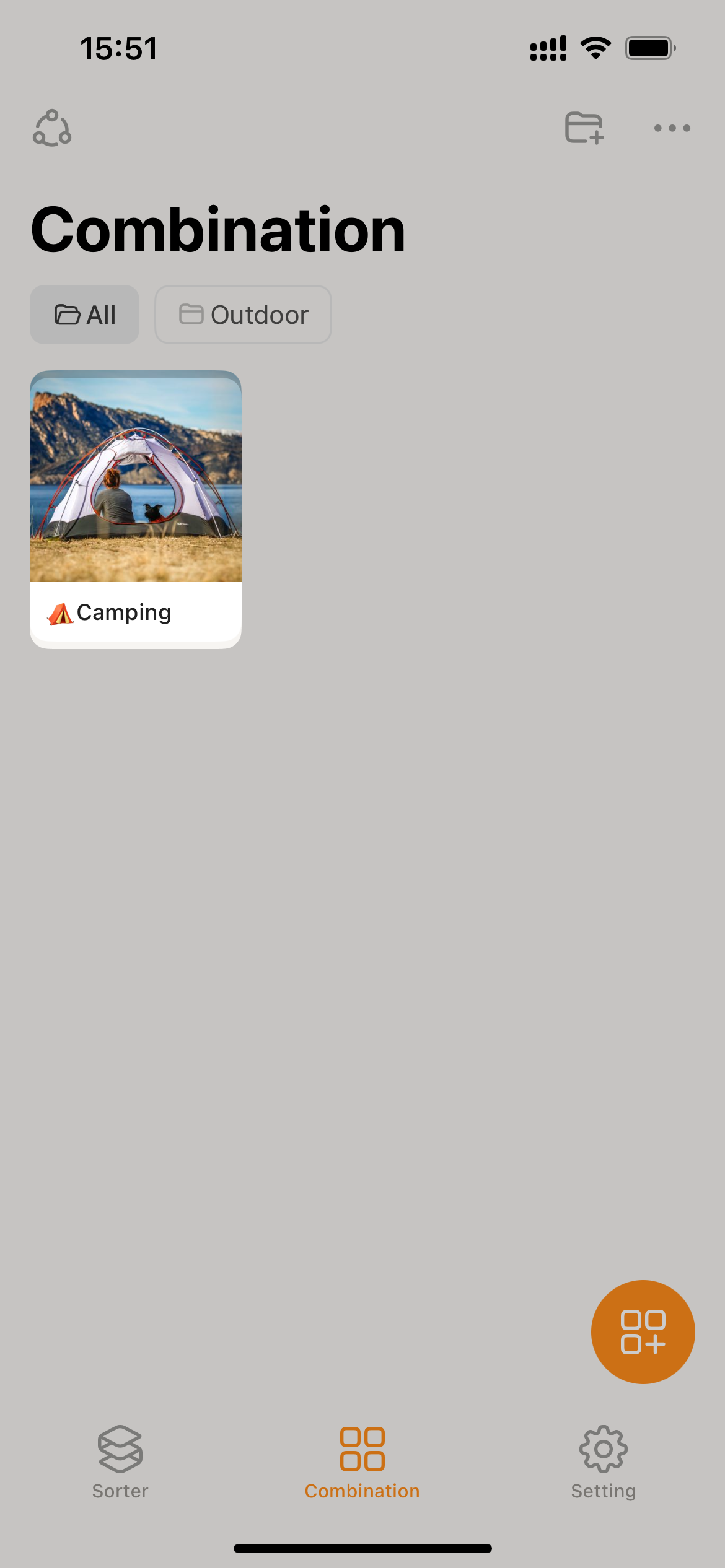
- Provide additional information as needed, such as remarks, cover images, or folders. If no separate cover image is set, Sorter will automatically generate a cover image for the combination using images from the included items.
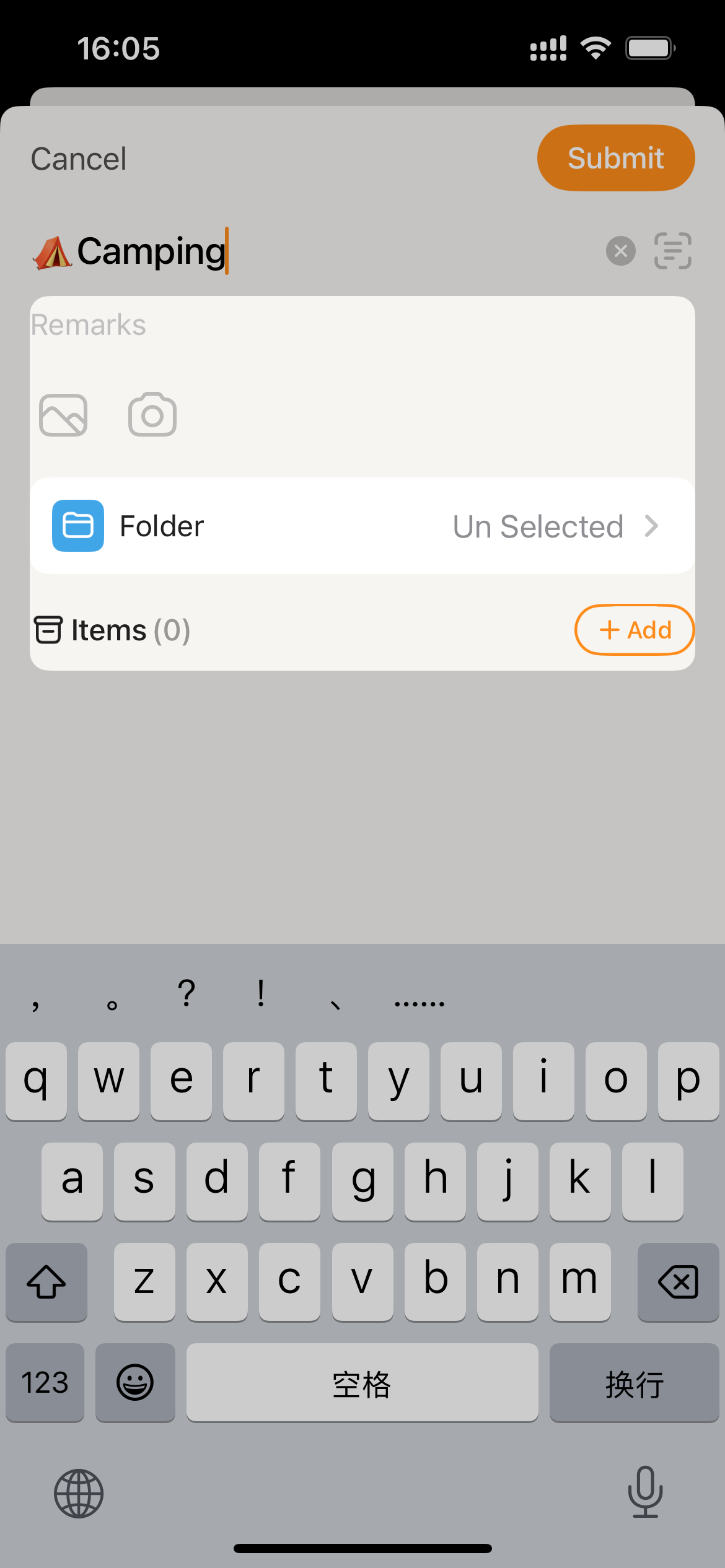
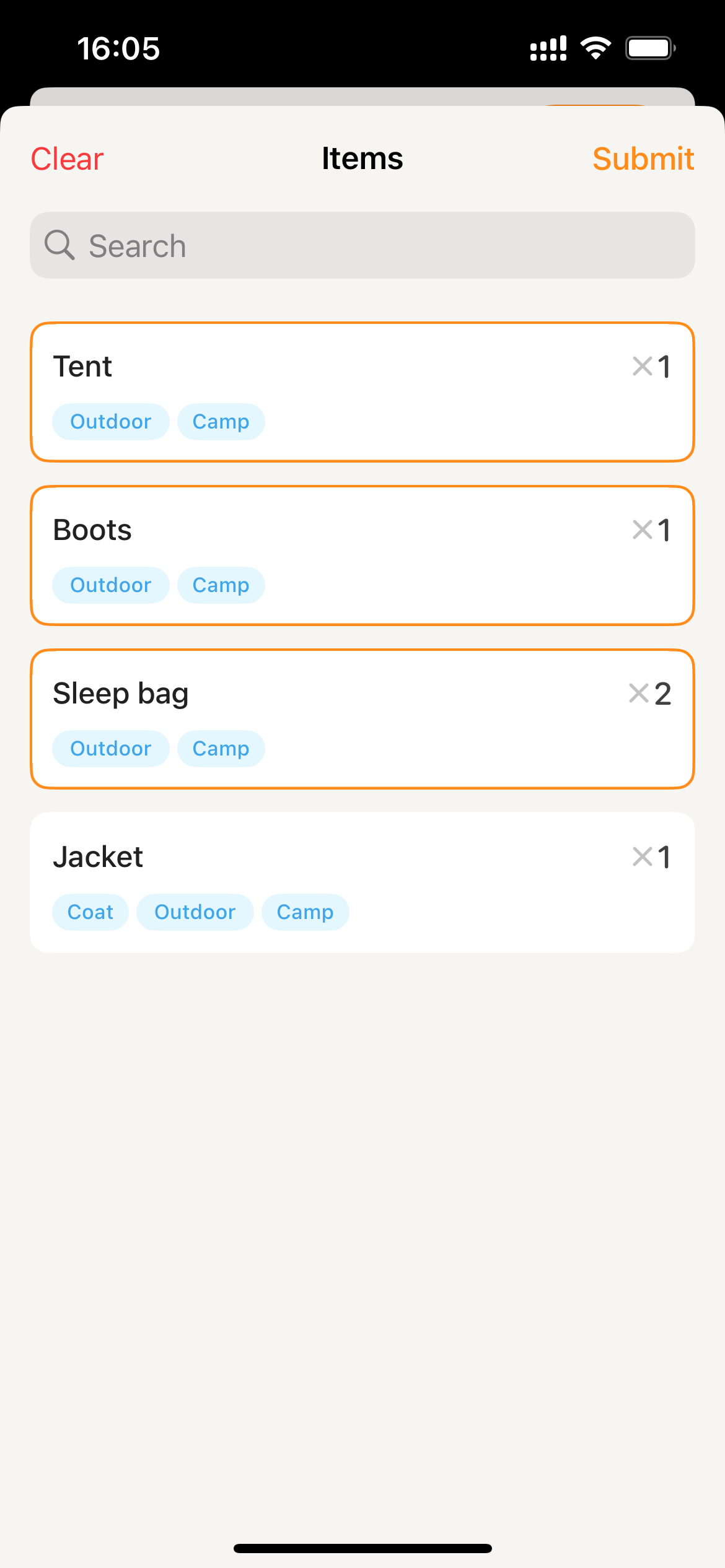
- Tap
Addto display the Items page. Select the items and tapSubmit.
- Click
Submitand Sorter will perform the create combination operation.
Create combinations using multi-item selection
- Go to homepage, tap the ”…” icon located to the right of the “Storage” title, and then select
Select Items.
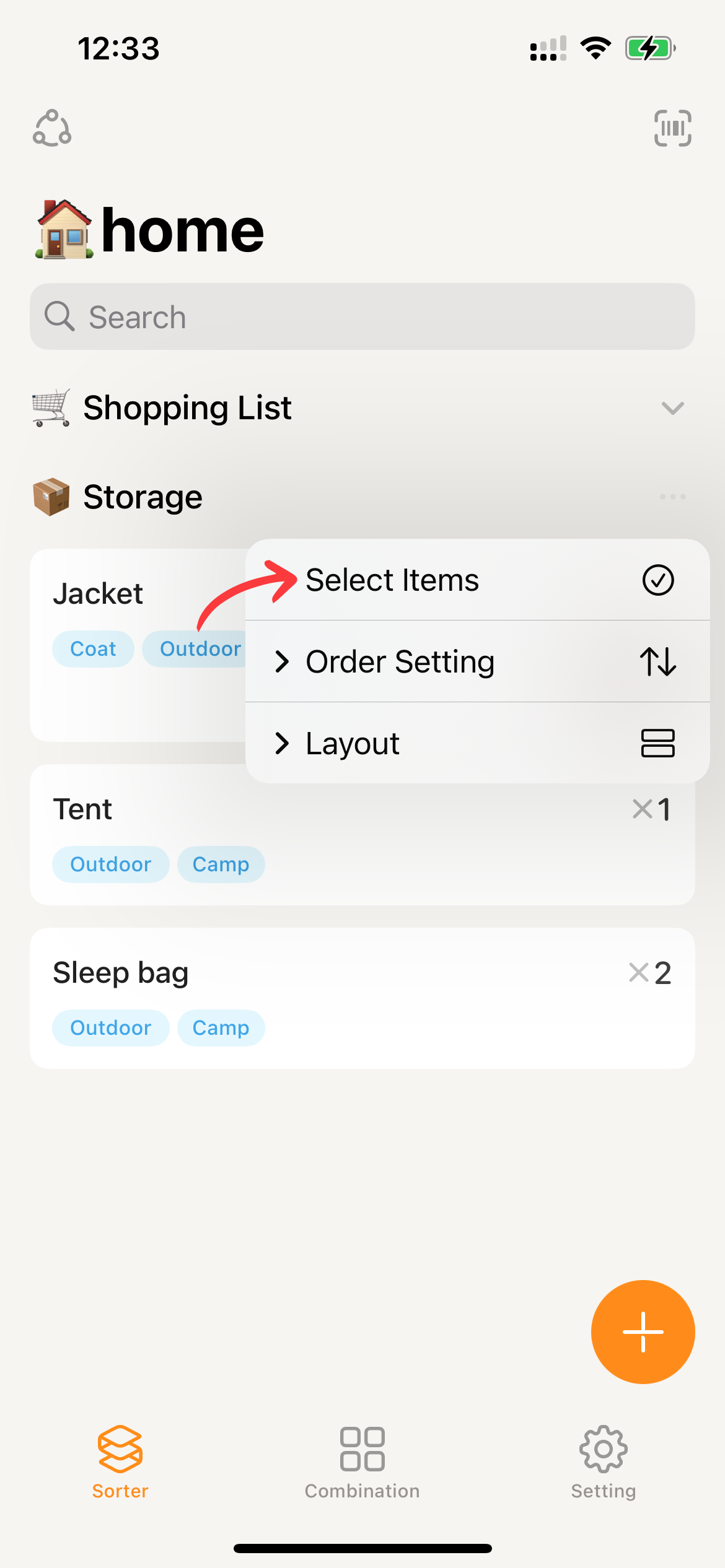
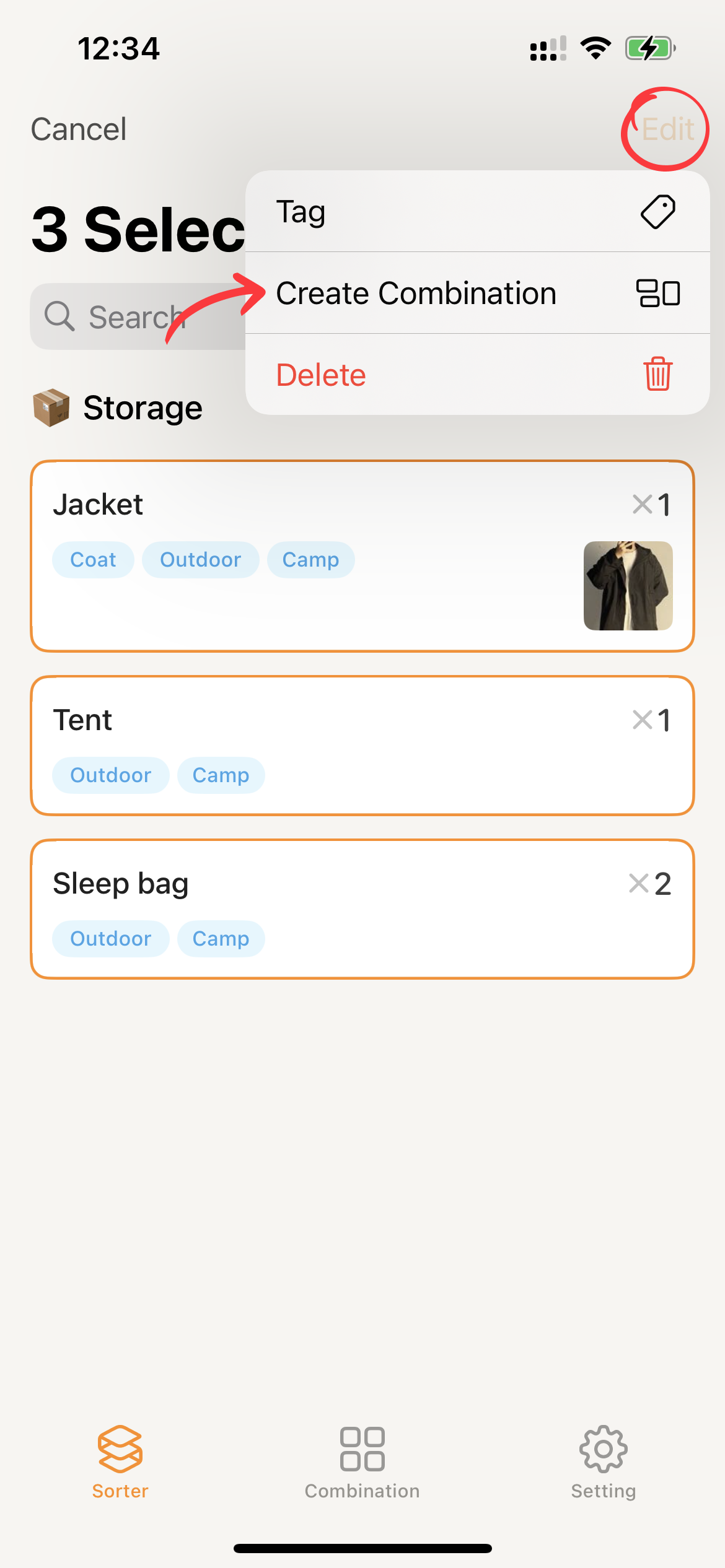
- Select the desired item cards based on your combination needs. Once you’ve made your selections, tap the
Editbutton in the top right corner of the screen and choose theCreate Combinationmenu.
- Enter a name for the combination and provide additional information as needed, such as remarks, cover images, or folders. If no separate cover image is set, Sorter will automatically generate a cover image for the combination using images from the included items.
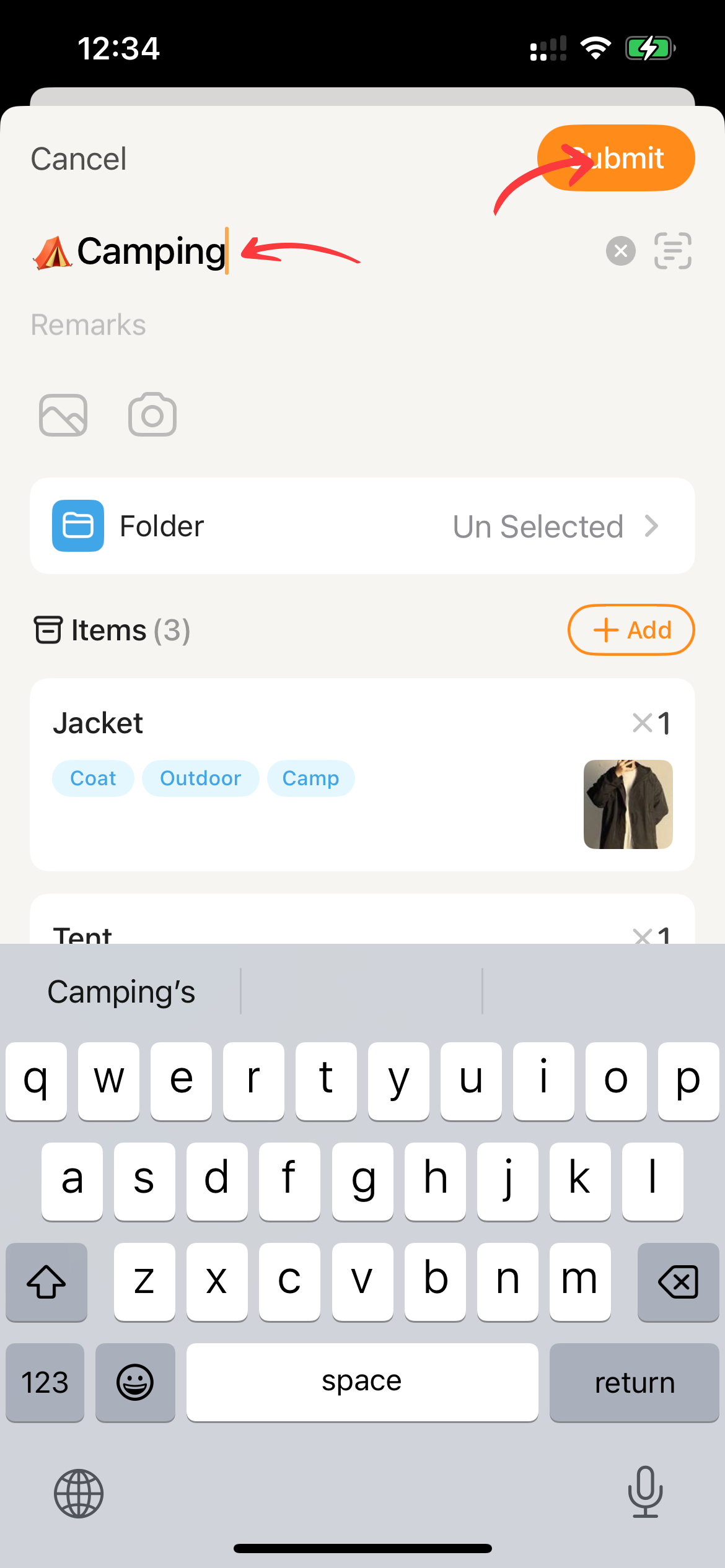
- Click
Saveand Sorter will perform the create combination operation.