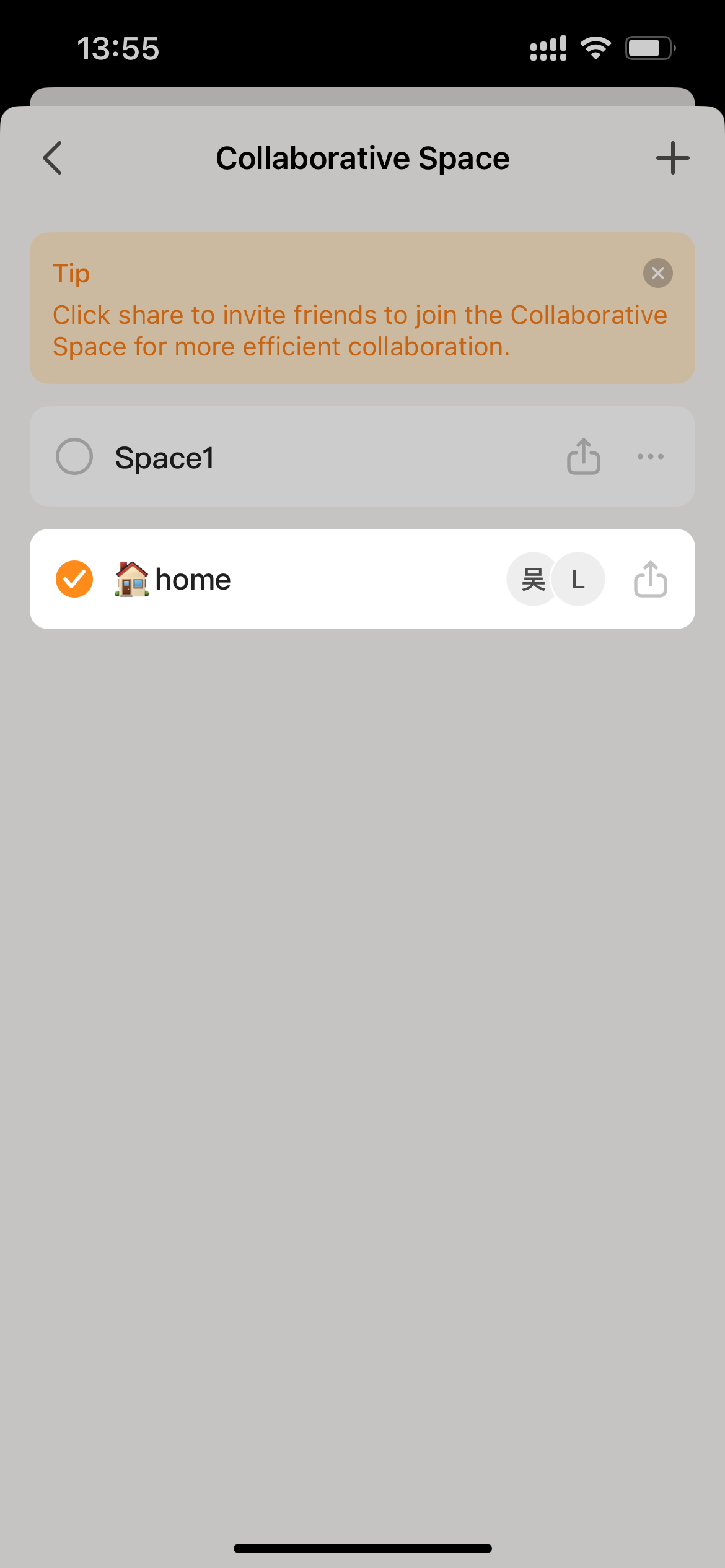
Sharing and Participating in Collaborative Spaces
Sharing Collaborative Space
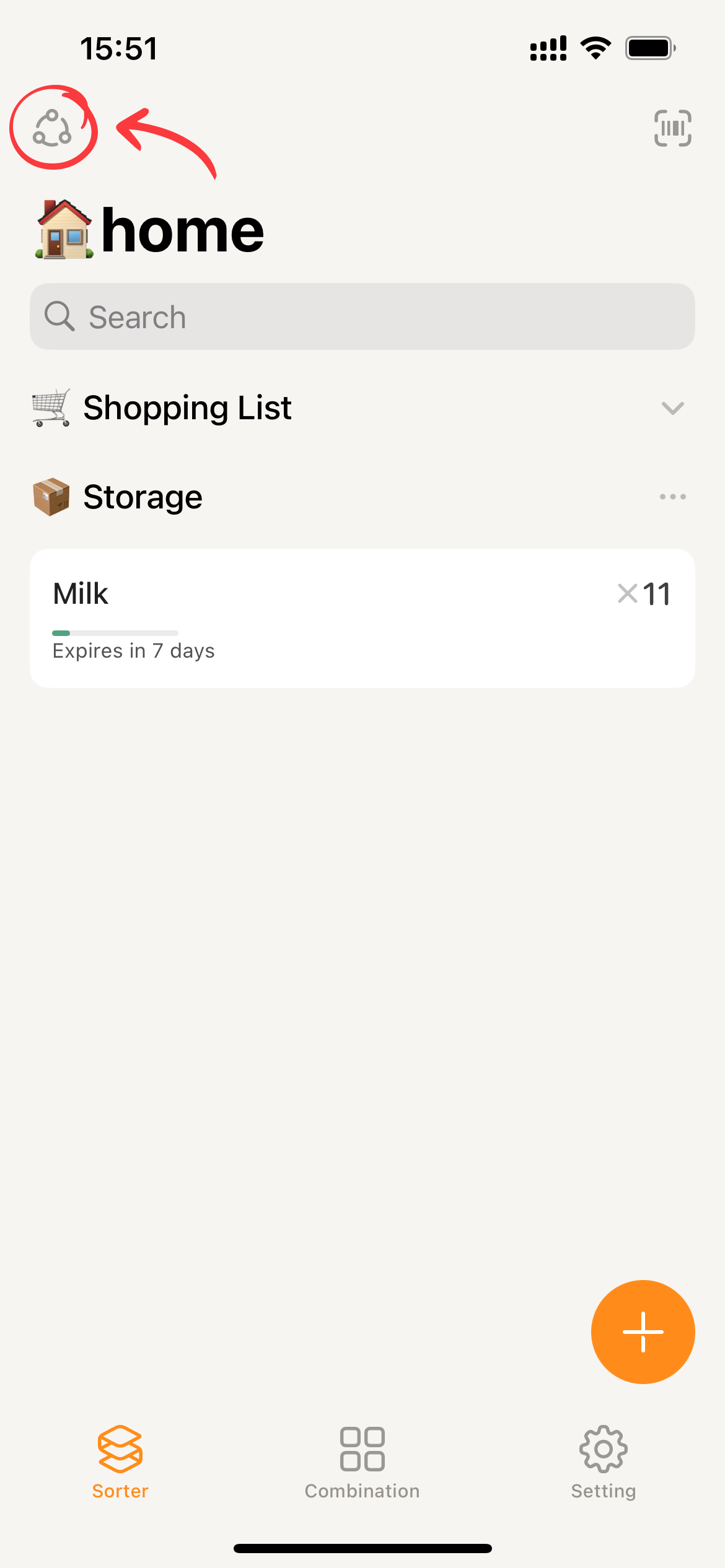
- Regardless of whether you’re viewing “Item”, “Combination”, or “Setting”, you can access the collaborative space selection page by clicking the icon in the top left corner of the page.
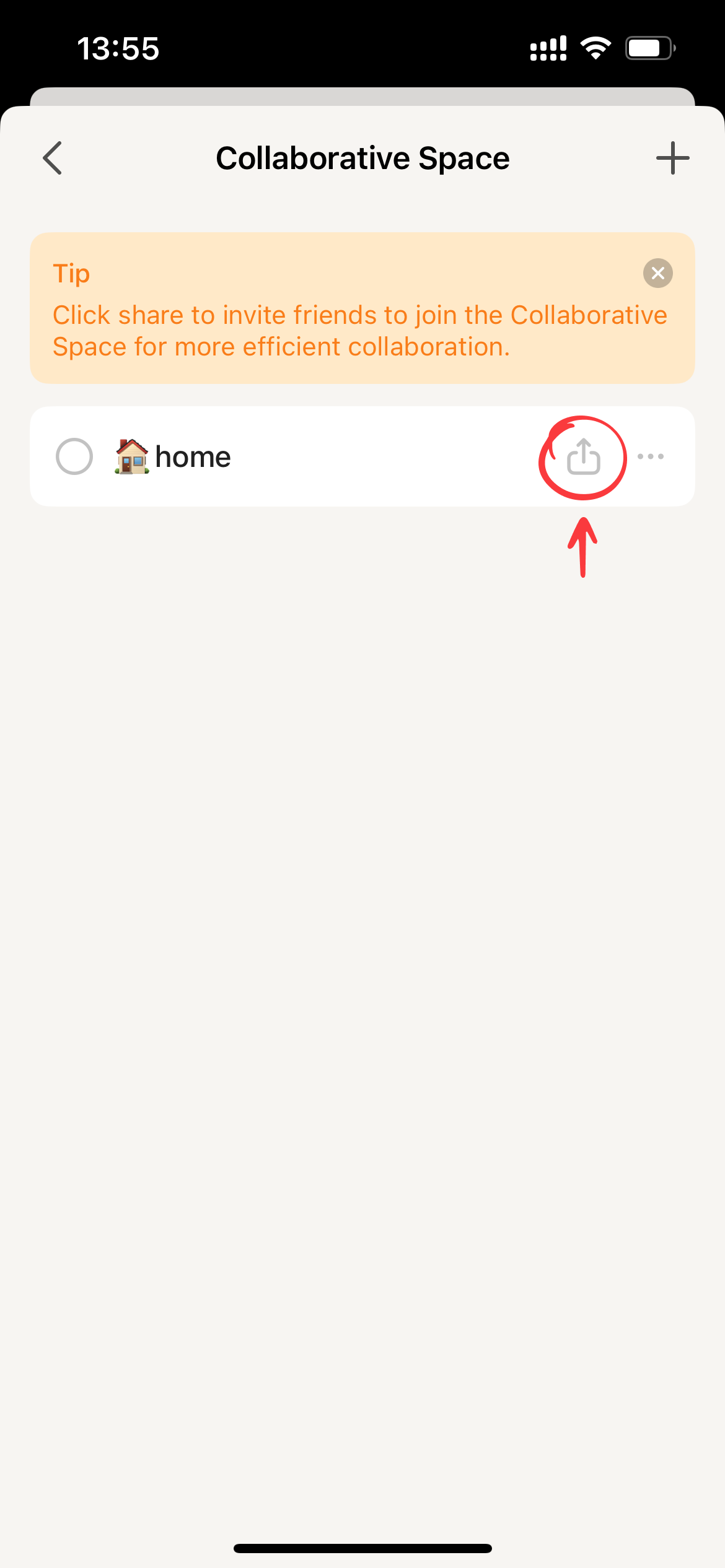
- Clicking the “Share” button will display the system sharing interface.
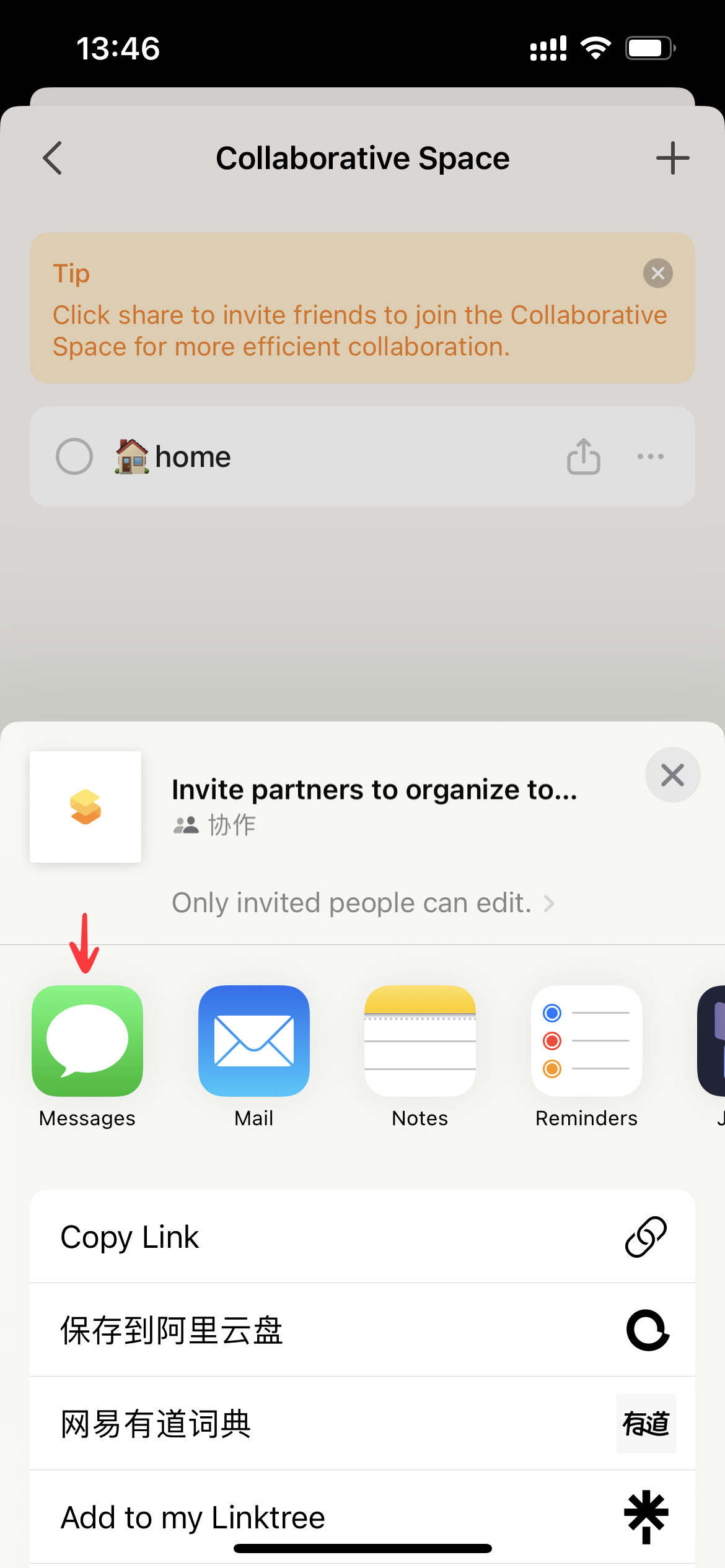
- For convenient and secure sharing, we recommend using iMessage. Simply enter the contact information (Apple ID or phone number) of the recipient in the “To” field.
- Please allow Apple Data Services to process the relevant data. The processing time may vary, but it typically takes less than a minute. If the loading process continues indefinitely, we recommend exiting the app, clearing the app’s background data, switching to a different network, and trying again multiple times.
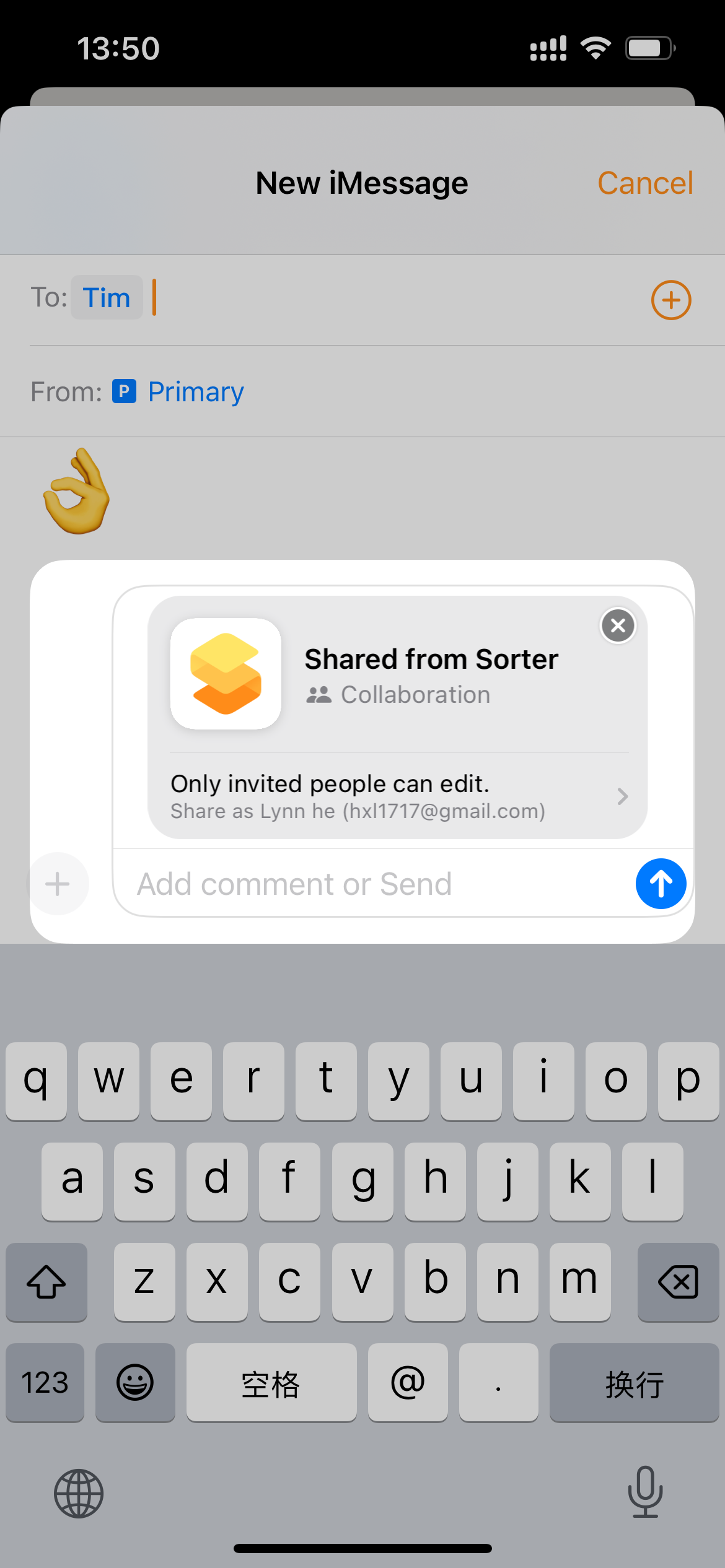
- Once the share link is generated, click “Send” to share it.
Participating Collaborative Space
Participants are advised to download and launch the Sorter app before proceeding with the following steps.
- When participants receive an invitation link in iMessage, clicking on it will automatically launch the Sorter app.
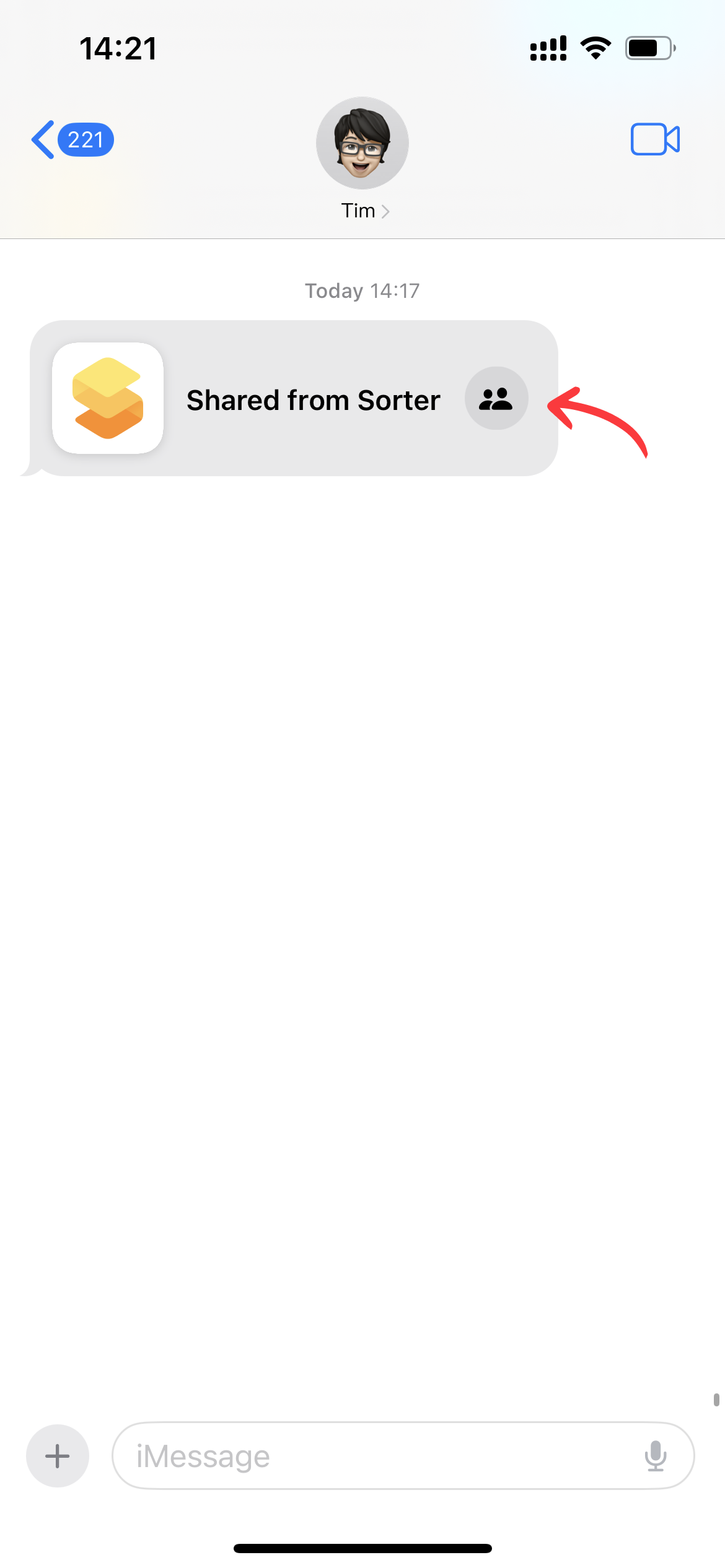
- Upon successful participation, a new collaborative space will appear on the space selection page. Clicking on this space will prompt Sorter to synchronize the corresponding space data.